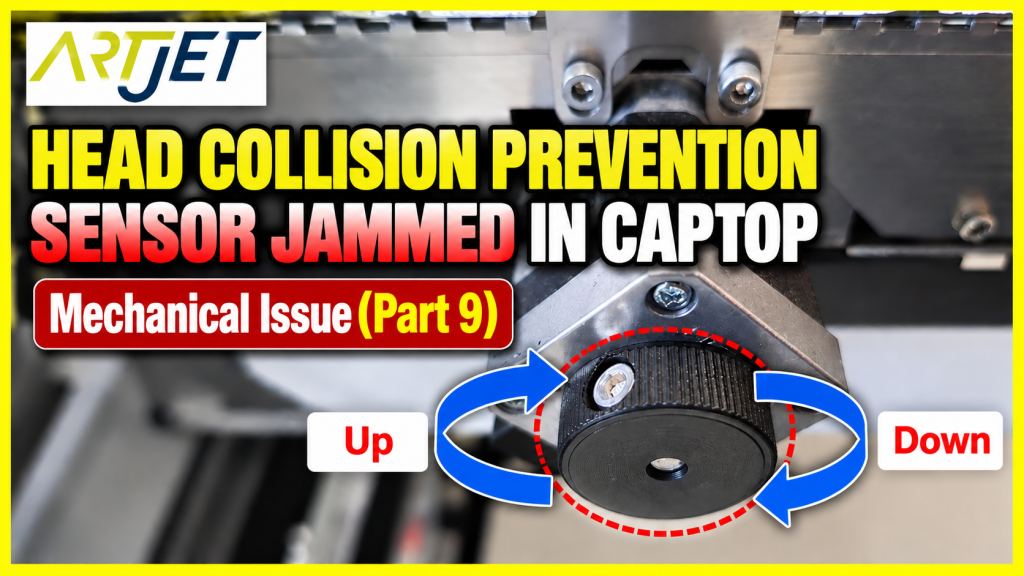
- Anyone whose Anti-crash sensor triggered the moment the software connected, leaving the machine completely unresponsive
- Anyone who tried the manual release method from Part 8 but the head carriage still won’t move by hand
- Anyone whose Captop has risen and locked against the head carriage so nothing can move
- Anyone who connected the software with a substrate still sitting on the flatbed and triggered this problem
- Anyone who needs to know how to manually lower the Capping station
- Do not lower the Capping station all the way down. Going past the threshold will cause an Initializing error when reconnecting the software. Stop as soon as the head carriage can be moved by hand.
- Do not force the head carriage by hand. This can damage the print head. Always lower the Capping station manually first.
- All work must be performed with the Main switch turned OFF.
- Always remove any substrate from the flatbed before connecting the software. This is the most common cause of this problem.
- Anti-crash bar jammed in Captop → head carriage cannot be moved by hand → Part 8’s method will not work.
- Solution: manually turn the Capping station motor clockwise to slowly lower the Captop.
- Critical: do not lower it all the way — stop as soon as the head carriage can move freely.
- Then: release both Anti-crash bars 3–4 times → reposition flatbed and carriage to center → Main switch On → Power On → connect software.
When the Anti-crash sensor gets jammed in the Captop — manual Capping station descent
I. Symptom — When the Anti-Crash Sensor Gets Jammed in the Captop
After enough time operating a UV printer, just about every problem imaginable will eventually come up.
One of them is the Anti-crash sensor getting jammed inside the Captop.
- This can happen when the software is connected with a previously printed substrate still sitting on the flatbed.
- It can also occur when a slightly tall substrate is placed on the flatbed without turning on the vacuum before connecting the software.
- When the software connects, each axis — X, Y, and Z — moves in sequence to find its home position.
- During this process, the head carriage moves toward the flatbed and then back to home — and if a substrate is in the way, it can strike the substrate and trigger the Anti-crash sensor.
- When the sensor activates, the head carriage stops near the Capping station — but the Capping station does not stop immediately. It continues rising and pushes the Anti-crash bar upward.
- This is how the Anti-crash bar gets jammed inside the Captop.
In this state:
- Closing and reopening the software does nothing,
- turning the Power button off and reconnecting does nothing,
- and even turning off the Main switch and reconnecting does not clear the message below.

The head collision sensor is continuously active.
- Think of it as an emergency stop button being held down without releasing.
- Because the Captop has risen and locked against the head carriage, the carriage cannot be pushed by hand either.
- Forcing it could damage the print head — leaving you with no obvious way forward.
II. Resolution — When the Anti-Crash Sensor Gets Jammed in the Captop
1. Manually Lowering the Capping Station
The solution is to manually lower the Capping station with all power off.
How to manually lower the Capping station
- The machine cannot be moved manually while powered on — turn off the Main switch at the rear of the printer.
- With the Main switch off, the head carriage, flatbed, and Capping station can all be moved manually.
- However, the Capping station cannot simply be pushed down by force — it must be lowered by manually turning its motor.
- Turn the circular knob shown in the photo below clockwise and the entire Capping station will slowly descend.
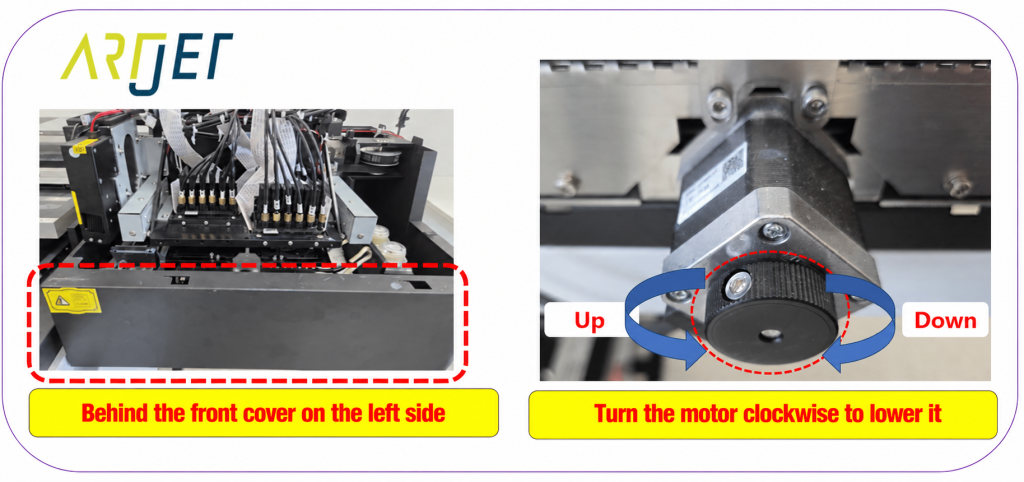
Step-by-step procedure
- Close the ARTJET software (if it won’t close, force-quit via Task Manager)
- Touch panel “Power” button OFF
- Main switch OFF (rear right of printer)
- Turn the Capping station motor knob clockwise to slowly lower the Capping station
⚠️ Critical Warning
- Lowering the Capping station too far past the threshold will cause an Initializing error when reconnecting the software.
- Stop as soon as the head carriage can be moved freely by hand.
- Lowering it all the way to the bottom will cause problems when reconnecting the software.
The full procedure is shown in detail in the YouTube video below.
2. After Releasing the Anti-Crash Bar
Once the Capping station has been lowered enough for the head carriage to move freely, manually push both Anti-crash bars up and let them down 3–4 times to confirm they have released properly.
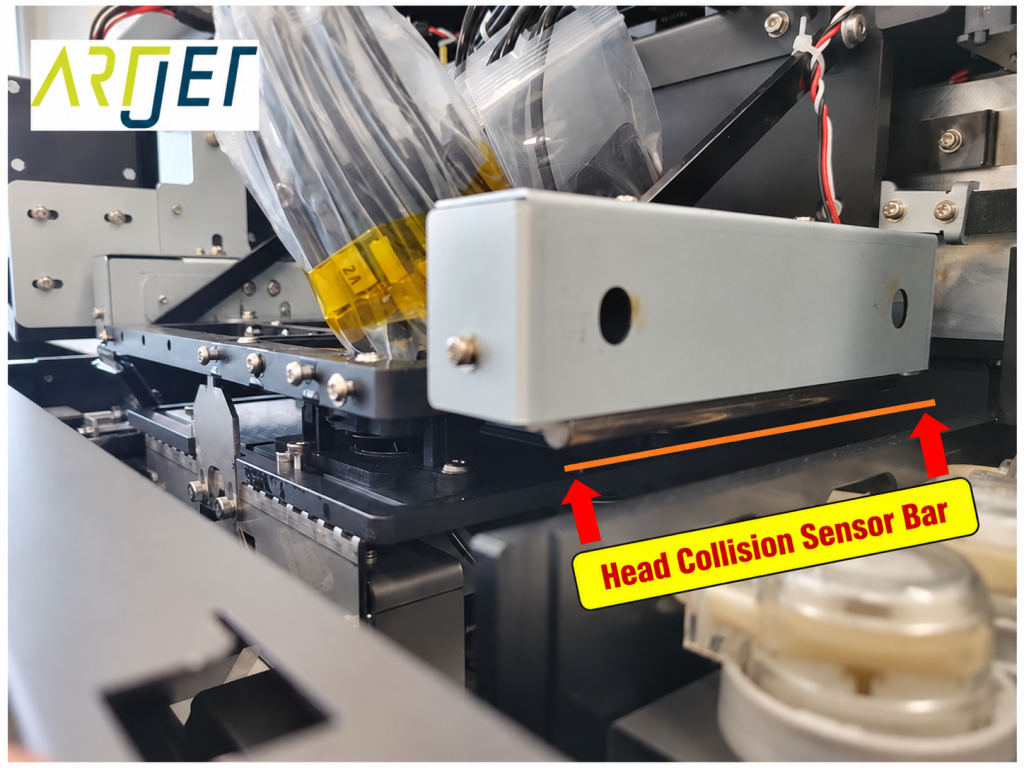
Manual release procedure
- Push the flatbed toward the rear to create enough space to reach the Anti-crash bars.
- Push each Anti-crash bar up and let it down 3–4 times on both sides.
- Reposition the flatbed to the center and the head carriage to the flatbed start zone.
- Main switch On → Power button On → confirm the center lights on the head carriage board turn off simultaneously and no blinking lights remain → connect the software
- The error message will be gone and the software will operate normally.
▶ How to release the Anti-crash sensor when software becomes unresponsive (YouTube)
IV. ARTJET UV Printer
