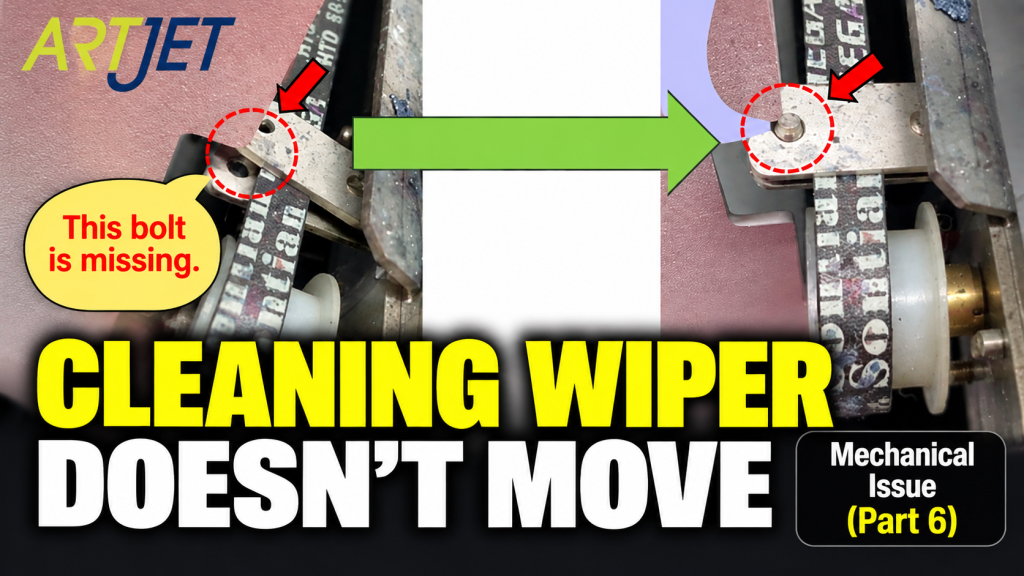
- Anyone whose cleaning cycle runs but the wiper blade doesn’t move back and forth
- Anyone who suspects the head surface isn’t being wiped properly after cleaning
- Anyone operating a high-usage or long-serving machine
- Anyone who wants a checklist of the parts that need regular cleaning — wiper, captop, underside of the head carriage, and more
- Anyone dealing with recurring print defects caused by accumulated ink contamination
- Dried ink left on the wiper blade can get pushed into the head nozzles during cleaning and clog them. Wipe the blade with an alcohol cloth every cleaning cycle.
- When cleaning the underside of the head carriage, use a separate cloth from the one used on the head underside itself. A contaminated cloth will cause nozzle contamination.
- If the underside of the LED lamp becomes contaminated with ink, ink curing weakens. Clean it with an alcohol cloth at least once a month.
- Dried ink buildup on the Captop’s rubber edge prevents a proper seal with the head, reducing the effectiveness of cleaning and pumping. Clean it regularly.
- Two main causes for a wiper not moving: ① a loosened screw on the belt-linkage plate → re-tighten it / ② accumulated ink contamination → clean it
- If the wiper simply stops with no error message, check the belt-linkage plate screw first.
- 5 parts requiring regular cleaning: LED lamp underside / wiper blade / captop edge / underside of head carriage / dust around the printer
- Always use separate cloths for the underside of the head carriage and the head underside itself.
The cleaning wiper isn’t moving — loose belt screw & ink contamination cleaning guide
I. Symptom — The Cleaning Wiper Won’t Move
This machine ran 24 hours a day in two shifts for a full year, was refurbished and delivered, and has now been in use for another 2 years and 6 months — a total of 3 years and 6 months of operation.
Running Print head cleaning does not produce any error message in the software.
However, the black wiper blade does not move back and forth, so it fails to properly wipe the head.
II. Resolution — The Cleaning Wiper Won’t Move
1. A Cause You Couldn’t Guess Just From Hearing the Symptom
Hearing this symptom alone leads to several possible theories.
- Is it a motor problem?
- Is the limit sensor not being detected during the cleaning cycle?
- Is the belt tension too tight?
- Is the belt itself worn out?
- Is heavy ink contamination preventing movement?
But the actual cause turned out to be surprisingly simple.
- The wiper is designed to move back and forth via a belt connection,
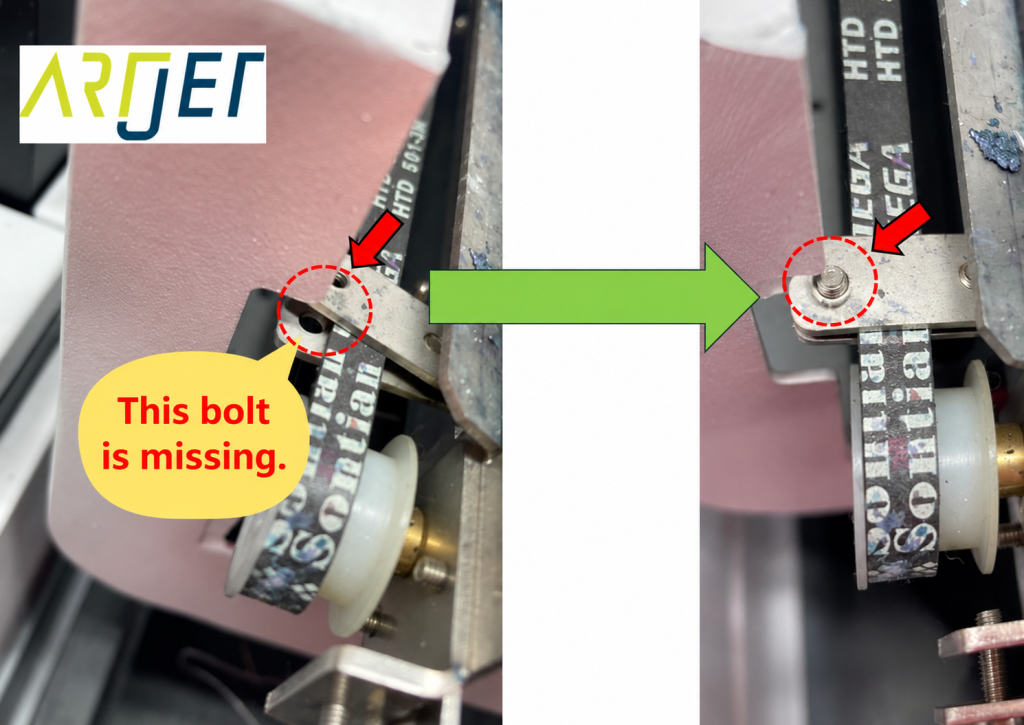
- but the screw on the plate connecting the wiper to the belt had loosened — so the belt was moving back and forth, but the wiper itself wasn’t.
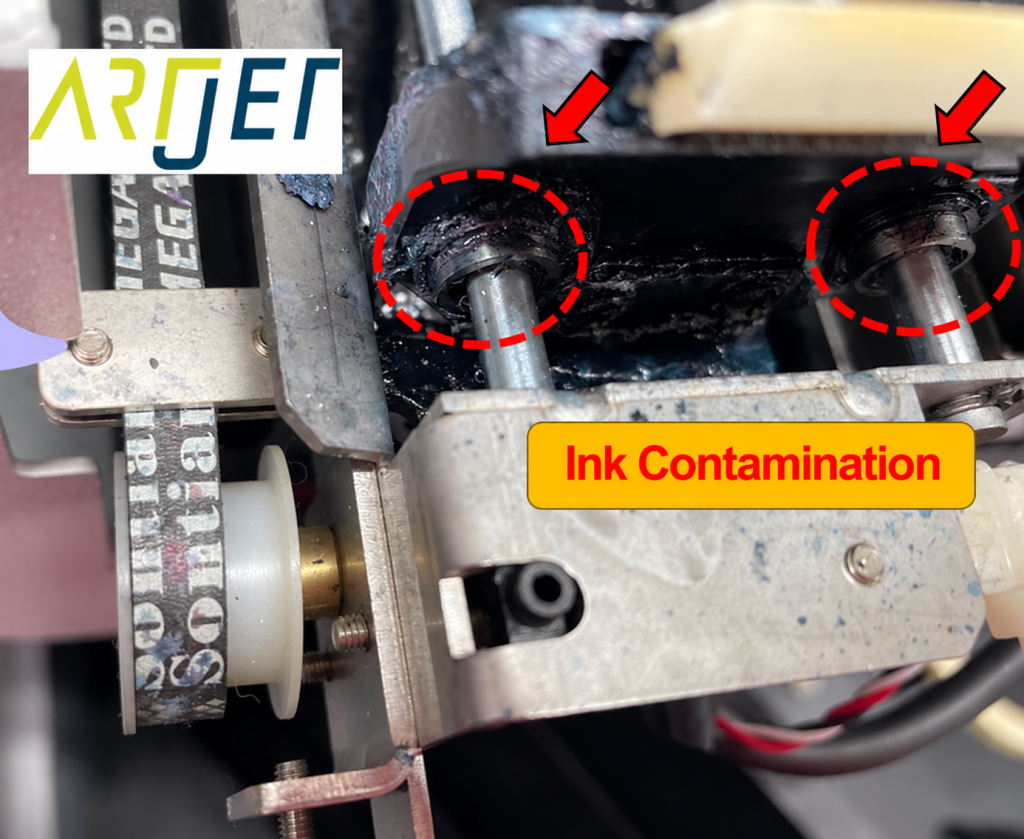
2. Same Symptom, Different Cause — Accumulated Ink Contamination
We’re sharing another case with the same symptom but a different cause.
- A customer who had never performed any maintenance on their machine also reported that the cleaning action wasn’t working.
- We advised cleaning the contaminated area thoroughly and trying again — that didn’t resolve it, so we made an on-site visit and fixed it simply by cleaning.
- If the circled area shown in the photo below becomes heavily contaminated with ink, the belt won’t be able to move the wiper.
- Ink residue in this area needs to be removed periodically.
5 areas that need regular cleaning
1. Removing ink contamination from the LED lamp underside
- The area where LED light is emitted also needs regular cleaning.
- If it becomes contaminated with ink, the LED light gets blocked, which can weaken ink curing.
- Wipe off any ink contamination with an alcohol-dampened cloth weekly, or at minimum once a month.
- If alcohol doesn’t remove it, gently scrape it off with a blade. It’s best to clean it regularly before it hardens, rather than letting it build up.
2. Removing ink contamination from the wiper blade
- If the wiper blade isn’t cleaned, leftover ink on it will dry and harden.
- That hardened ink can get pushed into the nozzles while wiping the head underside during cleaning — clogging them.
- Wipe the wiper blade with an alcohol cloth every cleaning cycle.
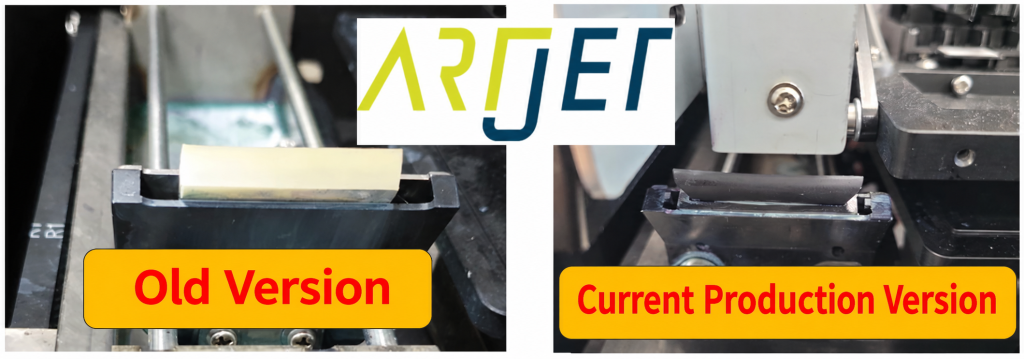
3. Removing ink contamination from the Captop edge
- If cured ink builds up on the rubber edge of the Captop, it interferes with the seal against the head.
- Without a proper seal, cleaning and pumping (inkload, inkfill) won’t be able to properly draw ink out of the head.
- Wipe the Captop edge with a cloth on a regular basis as well.
4. Removing ink and dust from the head carriage underside and anti-crash bar
- Raise the head to a height of 100mm and move it toward the flatbed to inspect the underside — you’ll typically find dust and ink contamination.
- If ink is clinging to the head carriage underside, it can drop during printing and cause print defects.
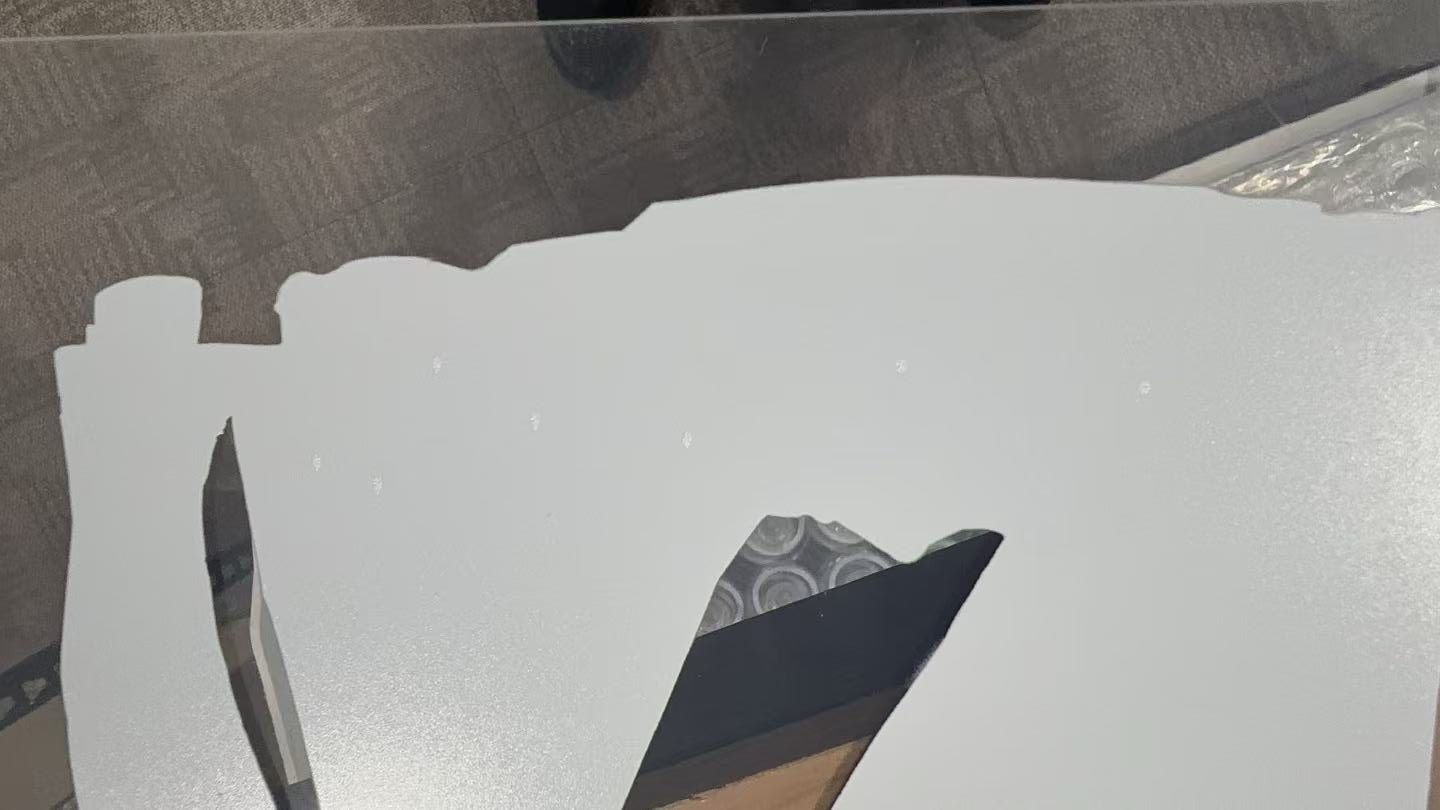
- Thin, thread-like dust can drag through still-wet ink during printing and cause print defects.
- Wipe the head carriage underside with a cloth once a week.
- Important: never use the cloth that cleaned the carriage underside to clean the head underside itself. Always use a separate, clean cloth.
5. Removing dust around the printer
- As the head carriage moves during printing, it generates airflow, and the constant LED light exposure on the substrate can create static electricity.
- This airflow and static can pull dust from around the printer onto the substrate being printed, ruining the output.
- Regularly remove dust from the flatbed and the surrounding area of the printer.
IV. ARTJET UV Printer

핑백: Software Won't Connect — Mechanical Issues (EP.7) ARTJET 2026