One color channel doesn’t come out at all
So far, I have summarized the information related to UV Printers below. If you click on the article, you will be taken to the link for related information.
24 articles on ink supply issues,
9 articles on head basics,
12 articles on actual head issues and their solutions,
10 actual mechanical Machine Problems and Solutions.
12 Problems and Solutions of Electronic Boards and SW Actually Issued
11 Problems and Solutions: Sai Rip Installation and Basic Settings, Spot Color Creation, and More
We’ve compiled a list of products that can be made with a UV printer.
Today, I’m going to explain an issue on the consumer site where the Cyan channel is not appearing at all.
I. Problem symptoms _One color channel doesn’t come out at all
1. Remove the head protection plate _One color channel doesn’t come out at all
The head protection plate was dented,
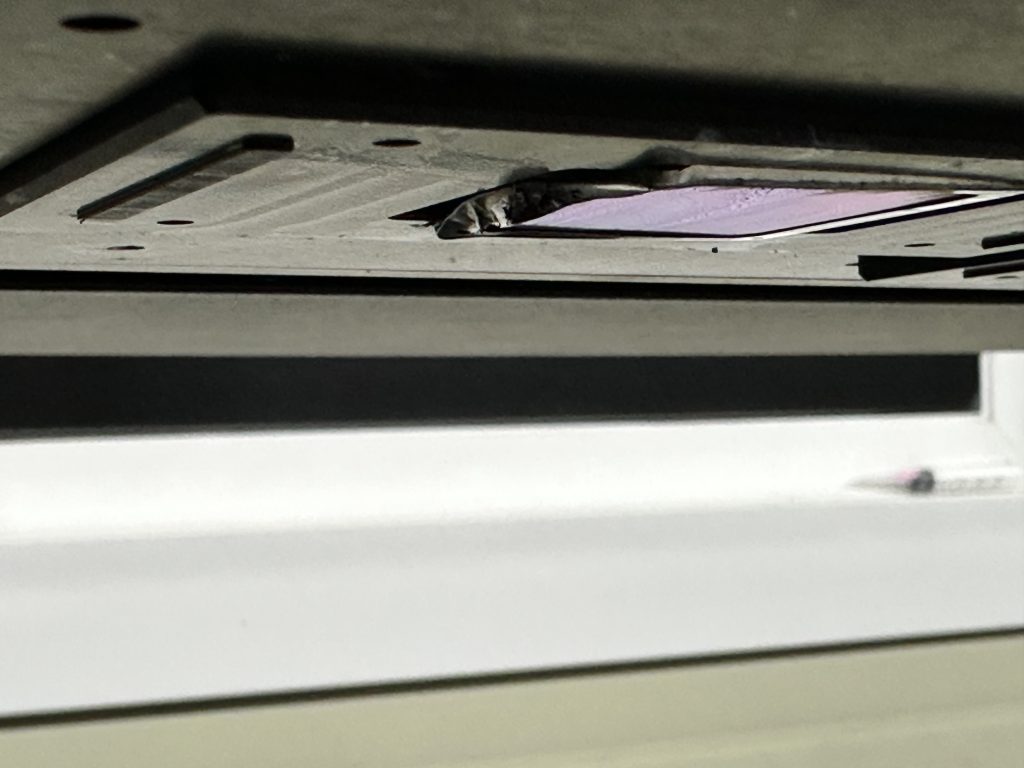
As shown below, I’ve provided a video showing how to remove the protective plate.
Even after removing the head protection plate, the head remains usable to some extent.
If you are wondering how to remove the head protection plate, click here.
2. Problem symptoms that appeared afterward _One color channel doesn’t come out at all
There’s no need to disconnect the data cable when removing the protective plate, but the CEO found it difficult to operate, so he disconnected the data cable and reconnected it.
Then, when printing was performed, the following error occurred:
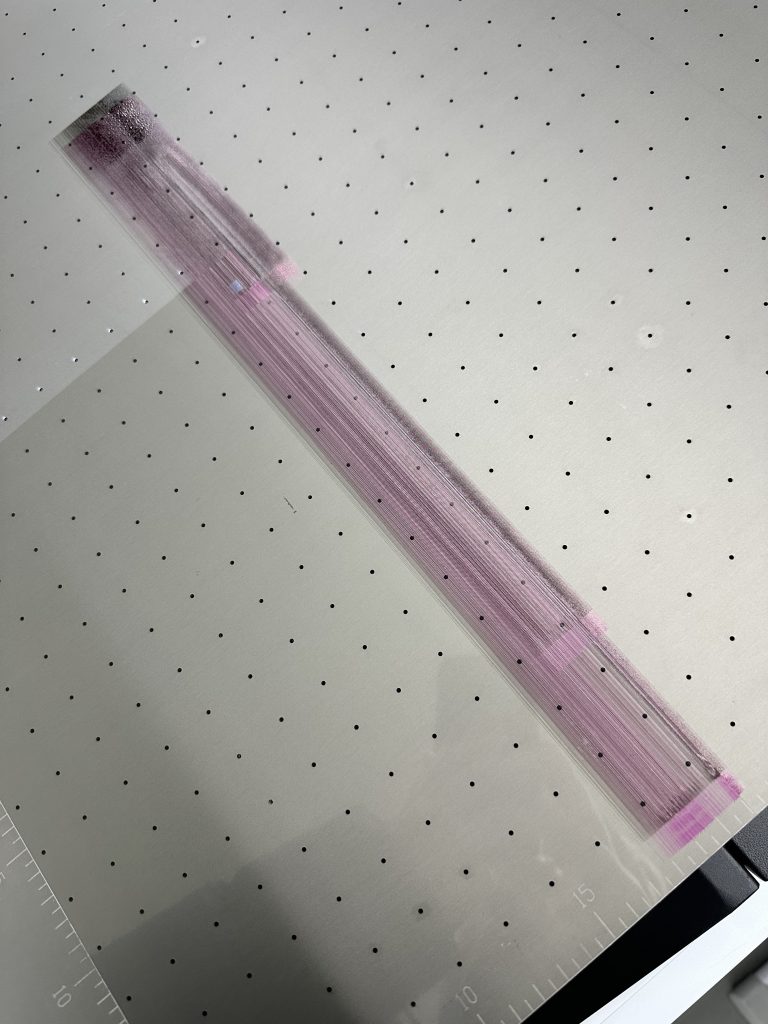
When I unplugged and plugged the DATA cable again, printing was normal, but the colors did not come out properly, as shown below.
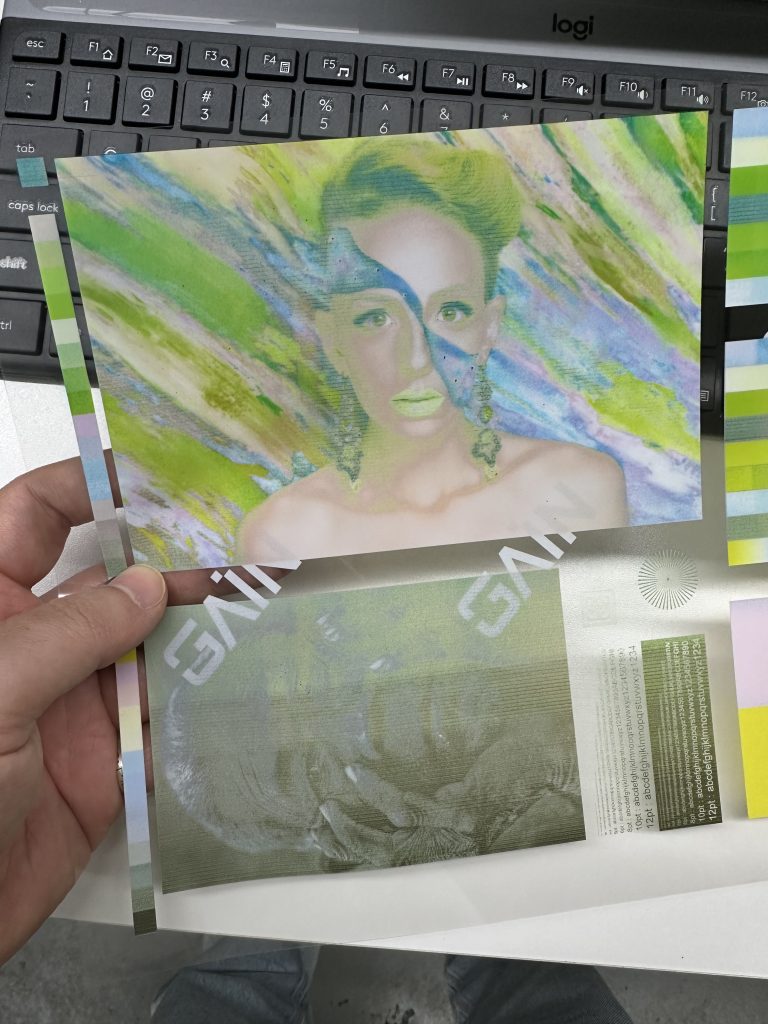
Now, I will tell you step by step how to solve this problem.
II. The exact problem and the presumed cause _One color channel doesn’t come out at all요
1. Exact problem _One color channel doesn’t come out at all
Instead of printing a test image, I asked the CEO to clean the printer and run a nozzle test.
However, he said the ink load, which had been working fine, wasn’t working.
“CEO, the head protection plate is probably dented, and the rubber on the cap top has worn down. Please replace the cap top.”
“Team Leader, it looks fine. Do I really need to replace it?”
“It looks fine, but there’s a tear in the middle that’s preventing the ink load.”
“I’ll replace it first.”
A little later,
“After replacing it, the ink load worked fine.”
“How was the nozzle test?”
“Everything else is fine, but the cyan channel 2 isn’t working at all.”
2. Presumed cause _One color channel doesn’t come out at all
No data was output from Cyan Channel 2, neither thick bars nor thin solid lines.
The likely causes are:
- Cyan ink is not entering the print head at all, preventing any pattern from being output.
- There’s a problem with the data cable, preventing cyan data from being output.
- There’s a problem with the cyan channel within the print head itself, preventing cyan data from being output.
III. Problem-solving process _One color channel doesn’t come out at all
1. Check if cyan ink enters the head _One color channel doesn’t come out at all
To check if cyan ink is properly supplied to the head,
- Remove the cyan damper from the head,
- Turn the brass attached to the damper and push it over the tube. Check if the ink tube is tight when pulled by hand.
- If it is, retighten the brass, squeeze the part where the damper connects to the head with a syringe, and draw ink.
- Check that there are no air bubbles, then reattach it to the head.
- Load the ink, clean it, and then test the nozzle.
If cyan data still does not appear, there is a problem with the data cable or the print head itself.
The representative performed the work, and the ink supply was normal.
2. Check the data cable _One color channel doesn’t come out at all
Here are the work instructions:
To replace the DATD cable, please refer to the following:
- Remove the printer cover.
- Remove the emergency button with a short screwdriver.
- The four large bolts can be removed by removing the black plastic round cap-like thing at the top of the cover. This can be removed with a long screwdriver from the spare parts section.
- For more details, please refer to the article below.
Disconnect the DATA cable and connect the new cable.
- When connecting a new DATA cable, the cut end should be inserted into the head.
- The uncut end should be cut off with a pair of nippers (or a knife) and connected to the board.
- The left and right sides of the head and the front and back of the board should be connected as before.
- For details, see the adjacent article. The shape of the two ends of the head DATA cable.
- For instructions on inserting the DATA cable into the head and folding the head cable, refer to the video below, starting at 2:40.
- https://www.youtube.com/watch?v=GQMbhFSCTX4
3. Head SWAP _One color channel doesn’t come out at all
Inspecting the new data cable should have been a priority, but replacing the data cable was a significant task, so the CEO started with replacing the head.
If all the bars in the varnish head’s nozzle pattern are still intact, the varnish head is normal.
By swapping the varnish head with the color head, we can immediately determine if there’s a problem with the head itself.
The head swap can be performed using the head mounting video below.
Symptoms after head replacement
- When testing the nozzle with the Varnish head transferred to the Color unit, all six channels were normal.
- When testing the nozzle with the Color head transferred to the Varnish unit, data was not output from Channel 2.
- The conclusion was that Channel 2 of the head was damaged.
IV. Test image with incorrect color and cause of problem _One color channel doesn’t come out at all
1. TEST Image with wrong color _One color channel doesn’t come out at all
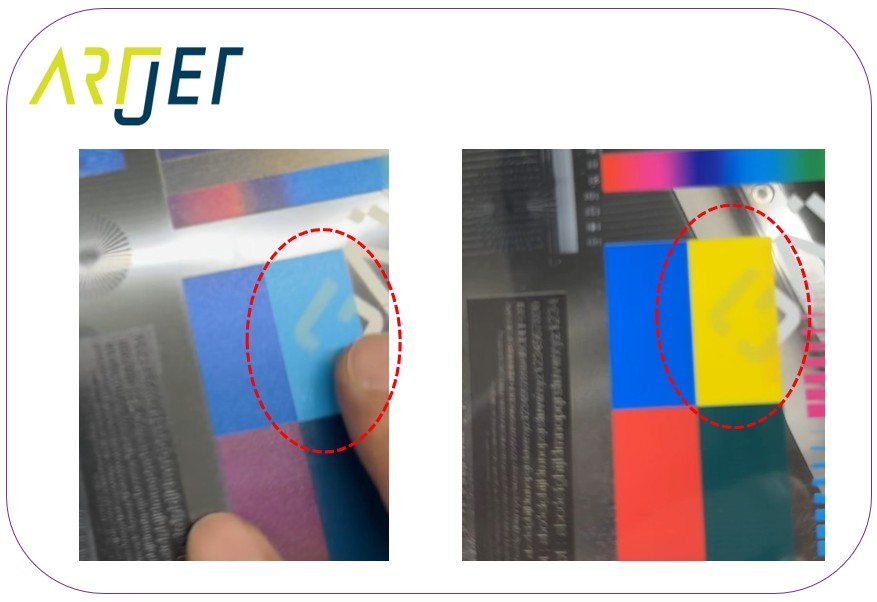
“Team Leader, the Nozzle Test rods are all working, but the colors are coming out strangely.”
“CEO, I think it’s Light Cyan where Yellow should be.”
“Oh, that’s what it looks like.”
“Are the damper and software channel order correct? If you haven’t touched anything, the software should be K, C, M, Y, Lc, Lm.”
“Oh, the damper is K, C, M, Lc, Y, Lm. I installed the damper incorrectly when replacing the head.”
2. Estimating the cause of the problem _One color channel doesn’t come out at all
When abnormal data is displayed as shown below when connecting the head cable after removing the protective plate, the head appears to be damaged.
If the DATA cable isn’t properly connected to the head, there are three possible damage scenarios:
- The luckiest case is if only the DATA cable is damaged, in which case you only need to replace it.
- The next scenario is if the head itself is damaged, as you’ve seen. Since Varnish doesn’t cause significant problems even if one channel isn’t used, you can swap it for a Varnish head.
- The worst case scenario is if the incorrect voltage travels to the board, damaging it.
3. Summation _One color channel doesn’t come out at all
Here’s a summary of the important points:
- If the head protection plate is dented, removing it can be done without disconnecting the data cable. Therefore, do not disconnect the data cable.
- If the head protection plate is dented, the rubber on the captop is likely damaged, so replace the captop immediately.
- If the test image is abnormal, first perform a nozzle test to identify the problematic color and narrow down the problem.
- When replacing the head, be sure to take a photo of the damper installation order and reinstall it in the same order as before.
V. This is how ARTJET supports our customers.
One thing I feel while selling and maintaining ARTJET UV Printers for 5 years is that the next most important thing after product stability is Troubleshooting DATA.
All products have problems, whether they are actual equipment problems or consumer errors, and product stability is how easily and quickly you solve those problems.
We are organizing all the troubleshooting DATA as follows.
You can see the product print quality by clicking here.

1. Additional information on printhead problems
Please refer to the information summarized above, and there is no additional information summarized yet.
2. Additional information on ink supply issues
Please refer to the information summarized above, and the additional information summarized below is as follows.
Addition
“no clogged nozzles, but banding in the red ARTJET 2025”
“When I print it, the whole thing has a yellow tint to it”
3. Additional information on Mechanical issues
Please refer to the information summarized above, and there is no additional information summarized yet.
4. Additional information on Electron board and Software issues
Please refer to the information summarized above, and there is no additional information summarized yet.
5. Additional information on Sai Flexi Rip software
Please refer to the information summarized above, and there is no additional information summarized yet.
6. Problems and solutions from actual consumer sites
1. Paper that absorbs ink
2. A line-like thing appears at the end of the white print surface
3.Can varnish banding be reduced?
4. Are there many problems with China’s UV Printer?
7. UV Printer Application
Please refer to the information summarized above, and there is no additional information summarized yet.
8. Bonus
1. UV Printer Old Model Refurbished _updated
2. UV Printer Laser Cutter Bonding Machine Which equipment should I buy first?
3. Considerations when choosing a UV printer
4. DTF Printer Price and Specification Survey
5. Acrylic Bonding Equipment Don’t Put It Off Anymore
6. China inkjet level now
7. Thoughts on KOSIGN 2024
8. ARTJET Delivery Preparation
9. ARTJET Setting Sequence
10. UV Printer History and Future Prediction 1
11. UV Printer History and Future Prediction 2
12. UV Printer History and Future Prediction 3
13. UV Printer History and Future Prediction 4
14. UV Printer History and Future Prediction 5
15. Are there many problems with China’s UV Printer?
16. UV Printer Small Text Meaning
17. Is the XP600 head okay
18. Roland UV Printer Summary
19. Mimaki UV Printer Summary
20. UV Printer Alibaba Direct Purchase Considerations
21. Things to consider when buying a used UV Printer
22. Bi Uni Print Quality Differences
23. RDworks download install and laser head position by SW
That’s it for today.