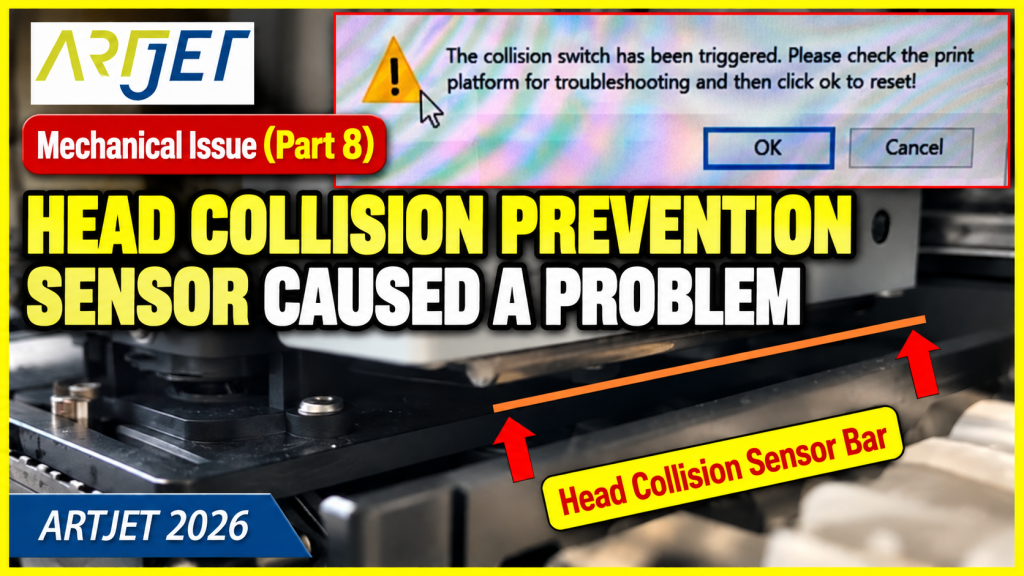
When the Head Collision Sensor Causes Problems — Mechanical Issues Part 8
Symptom → Hypothesis → Inspection → Solution
✅ Who Should Read This
- Anyone whose software becomes completely unresponsive after the head collision sensor triggers — unable to close or restart
- Anyone seeing a “collision sensor is active” message that won’t go away no matter what they do
- Anyone whose machine fails to initialize even after removing the substrate and rebooting
- Anyone who wants to understand what the Anti-crash sensor is and why it’s essential on UV printers
- Anyone who needs to manually release the Anti-crash bar
⚠️ Caution (Protecting High-Cost Components)
- Before touching the Anti-crash bar by hand, the Main switch must be turned OFF. The head collision sensor functions similarly to an emergency stop button.
- The collision sensor is a supplementary safety device only. If the height difference between the substrate and head is too extreme, the head carriage can collide with the substrate before the sensor even activates.
- Always check substrate height and set the correct print height before starting a job. Do not rely solely on the sensor.
- After releasing the Anti-crash bar and powering back on, confirm that the center lights on the head carriage board turn off simultaneously and that no blinking lights remain before connecting the software.
🧭 Quick Summary (Field Decision)
- Collision message won’t disappear → The Anti-crash bar has not released.
- Resolution order: Force-quit program → Power Off → Main switch Off → manually move bar up and down 3–4 times → reposition flatbed and carriage to center → Main switch On → Power On → connect software
- Even if the bar looks down, the sensor may still be active. Repeat on both bars, 3–4 times each.
- The collision sensor is a supplementary device. Correctly setting the head height to match substrate height before printing is always the most important step.
📋 Mechanical Issues — Full Series
Real mechanical issues encountered in the field, documented in order. This list will be updated as new articles are added.
08
When the head collision sensor causes problems — manual Anti-crash bar release
When the head collision sensor causes problems — manual Anti-crash bar release
This is Part 8 of the Mechanical Issues series — what to do when the head collision sensor locks up and won’t release, and how to manually reset it.
I. What Is the Head Collision Sensor? — When the Head Collision Sensor Causes Problems
Before covering the symptom and solution, let’s explain what the head collision sensor actually is.
- The head collision sensor is a protective device that immediately stops X-axis carriage movement before the head can strike the substrate.
- When the sensor activates, the current print job is interrupted and must be restarted.
- UV printers are equipped with this sensor far more often than standard inkjet printers — for three main reasons.
1. Wide range of substrate heights
- Roll-to-roll inkjet printers work with substrates of similar thickness, so head height adjustments are minimal. UV printers print on substrates with vastly different heights, requiring head height adjustment for each job.
- When an operator forgets to adjust the head height to match the substrate, the head can strike the substrate — and the collision sensor is there to prevent this.
2. Heat generated by UV light
- UV printers cure ink with ultraviolet light the moment it lands on the substrate.
- In the era of mercury lamps, the heat was intense enough to warp heat-sensitive substrates during printing. Warped substrates would rise off the vacuum hold and get scraped by the moving head.
- Even with LED lamps now standard, residual heat hasn’t completely disappeared — so the collision sensor remains useful.
3. Limits of vacuum/suction
- Vacuum hold is strongest when all holes are sealed. If any holes remain open, the holding force weakens.
- UV heat can cause substrates to warp mid-print, lifting areas not fully held down by vacuum — causing them to rise and strike the head.
- This is another key reason the head collision protection system was developed.
⚠️ The head collision sensor is a supplementary device only.
- If a 100mm-thick substrate is printed with a head height of only 5mm — an extreme height mismatch — the head carriage can collide with the substrate before the sensor even has a chance to respond.
- Height differences that fall between the print head and the Anti-crash bar may also go undetected by the sensor.
- Operators must always set the correct print height based on substrate thickness before starting a job.
II. Symptom and Resolution — When the Head Collision Sensor Causes Problems
1. The Symptom
When the head collision sensor activates during printing, the standard resolution is:
- Remove the substrate from the flatbed → close the program → Touch panel Power Off → Power On → restart the program
- In most cases, this restores normal operation.
However, sometimes this doesn’t work.
- The error message keeps reappearing, and even after relaunching the software, only that message is shown.
- The message reads: “The head collision sensor is active. Remove any substrate from the flatbed and restart the software.”
- But the substrate has already been removed — and the software won’t close. The machine is completely unresponsive.

When the head collision sensor causes problems
2. Cause and Resolution
Sensor location
- The head collision sensors are located in the silver boxes on each side of the Print head carriage — one on each side, two in total.
- Whether the carriage is moving left or right, any contact triggers an immediate stop.
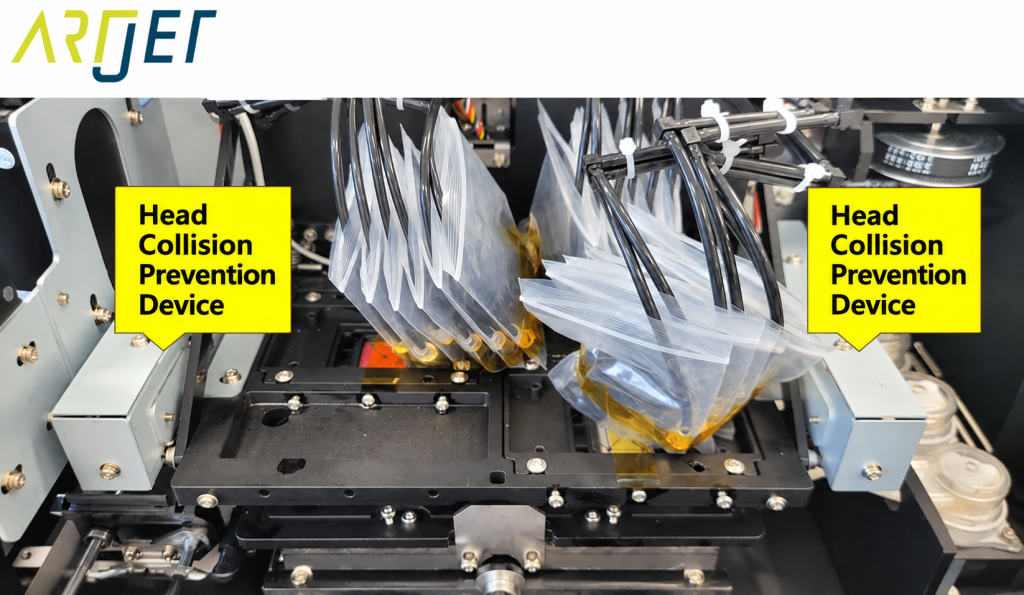
The Anti-crash bar and how it works
- Below each silver box is a bar.
- During printing, if a substrate warps and rises, this bar contacts the raised area before the head can reach it.
- When the bar is pushed upward, the sensor activates and the head carriage stops immediately.
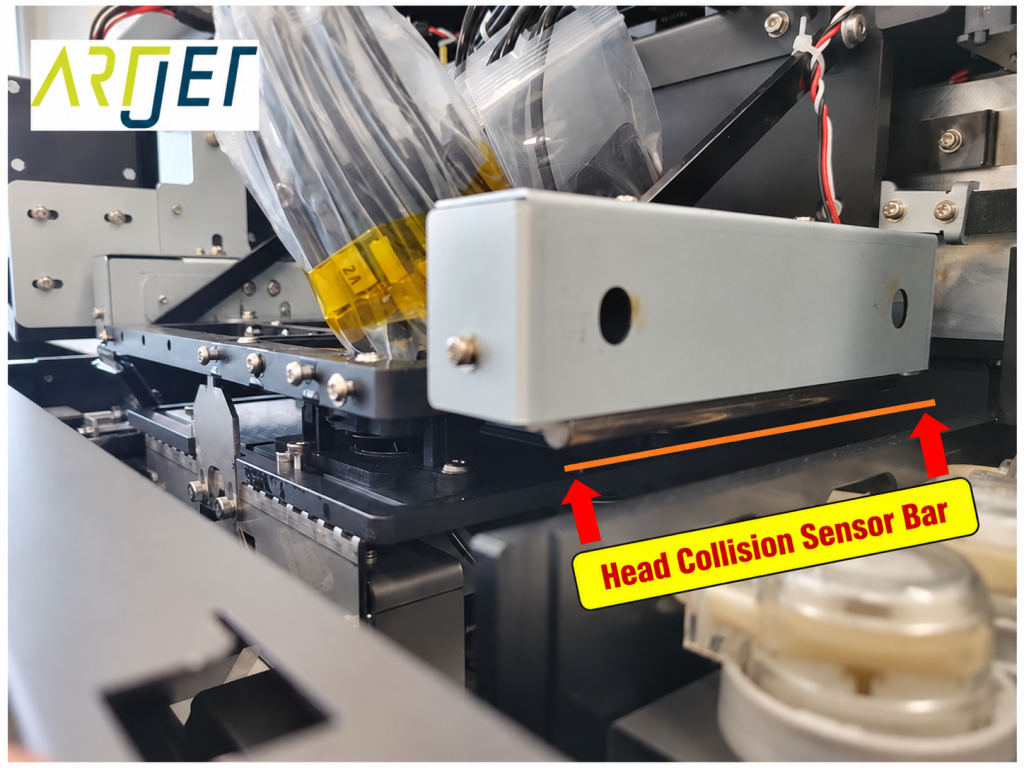
- See the video below for a demonstration of the bar movement.
Why the message won’t disappear
- If the Anti-crash bar remains in the raised position without releasing, the sensor stays continuously active.
- In this state, the software cannot initialize even after restarting.
Manual release procedure (order matters)
- Force-quit the unresponsive program: Ctrl + Alt + Delete → Task Manager → End Task
- Touch panel Power button Off → turn off the Main switch (rear of machine)
- The Anti-crash sensor functions like an emergency stop. The Main switch must be fully OFF before touching the bar by hand.
- With the Main switch off, both the head carriage and flatbed can be moved manually by hand.
- Push the flatbed toward the rear to create enough space to reach the Anti-crash bars.
- Manually push the Anti-crash bar up and let it down 3–4 times. Even if the bar appears to be down, the sensor may still be active — repeat the motion to ensure release.
- Do this on both bars, 3–4 times each.
- Reposition the flatbed to the center and the head carriage to the flatbed start zone. (Moving either axis to its extreme end may pass the limit sensor, causing an error when reconnecting.)
- Now: Main switch On → Power button On → confirm the center lights on the head carriage board turn off simultaneously and no blinking lights remain → connect the software
- The error message will be gone and the software will operate normally.
The full procedure is also demonstrated in the YouTube video below.
▶ How to release the Anti-crash sensor when software becomes unresponsive (YouTube)
III. UV Printer Basics · Troubleshooting · Printable Products
All UV Printer content has been organized below. Click any item to go directly to that article.
1) Ink Supply
23 articles on print errors caused by ink supply issues including cleaning and pumping
2) Print Head Issues
12 articles covering everything from head replacement to head-related problems
Want to study print heads in depth: Print Head Basics — 9 Articles
3) Electronics / Software Issues
4) RIP Software
5) Products You Can Make with a UV Printer
IV. ARTJET UV Printer
After more than five years of selling and servicing ARTJET UV printers, one thing stands out above all else.
Next to product reliability, the most critical factor is accumulated troubleshooting data.
Any machine can develop problems depending on the environment, work conditions, and operator experience. What truly matters in a production setting is not “a machine that never fails” — it’s:
How quickly and how accurately you can identify and resolve the issue when it occurs.
ARTJET continuously collects and organizes real-world problem data from the field to support faster and more precise troubleshooting.
🎥 Print Quality Sample
💰 ARTJET Pricing & Sales Conditions
(Note: Exterior design has been updated)
🧾 Full List of UV Printable Products

* Note: Exterior design has been updated.
※ This article is based on real field cases. Results may vary depending on your environment and machine configuration.