How to Print on Slanted Substrates — UV Printer Products (Part 8)
✅ Who should read this?
- Anyone who needs to UV print on substrates with slanted or angled surfaces (e.g., soccer tactics board magnetic name tags)
- Anyone curious about how to configure print settings when the stand-off is uneven across the substrate
- Anyone who doesn’t know why Scan speed and Feed speed must be set to the same value
- Anyone who wants to understand the problems of UV printing over residual adhesive sheets
- Anyone curious about why White ink cannot fully shield strong base colors like red or black
⚠️ Cautions
- Any residual adhesive sheet on the print surface must be completely removed. Even thick White ink will show uneven contours over leftover adhesive.
- Strong base colors like red and black cannot be fully shielded by White alone. The existing ink must be stripped first, then White printed at least twice.
- Slanted substrates require uni-directional printing (Single leave) + Scan speed SLOW + Feed speed SLOW.
- Scan speed and Feed speed must always match. Mismatched values can cause the printer logic to desync and stop mid-print.
🧭 Key Summary (Field Checklist)
- Slanted surfaces exceed the optimal 1.2 mm stand-off — Head carriage speed must be set to SLOW to minimize ink inertia effects.
- The faster the head carriage + the greater the ink drop distance = the more ink misses its target position.
- Scan speed and Feed speed must always match — FAST/FAST, NORMAL/NORMAL, SLOW/SLOW.
- Remove all adhesive residue before printing. Strip strong base colors first, then apply White twice for shielding.
- Uni-directional + SLOW + double White pass takes longer, but achieves acceptable quality on slanted surfaces.
UV Printer — Knowledge Base · Troubleshooting · Printable Products
We have organized UV Printer related content as listed below. Click any item to navigate to the corresponding guide.
1) Ink Supply
23 articles covering ink supply issues including cleaning and pumping errors
2) Print Head Issues
12 articles covering everything from head replacement to head-related problems
For a deeper understanding of print heads: Printhead Basics — 9 Articles
3) Electronics / Software Issues
4) Mechanical Issues
5) Sai Flexi RIP Installation, Spot Color, and Troubleshooting
📋 UV Printer Products Series — Full Article List
We are documenting UV printer product manufacturing methods in order. This list will be updated as new articles are added.
08How to Print on Slanted Substrates
We are covering the various products you can make with a UV printer.
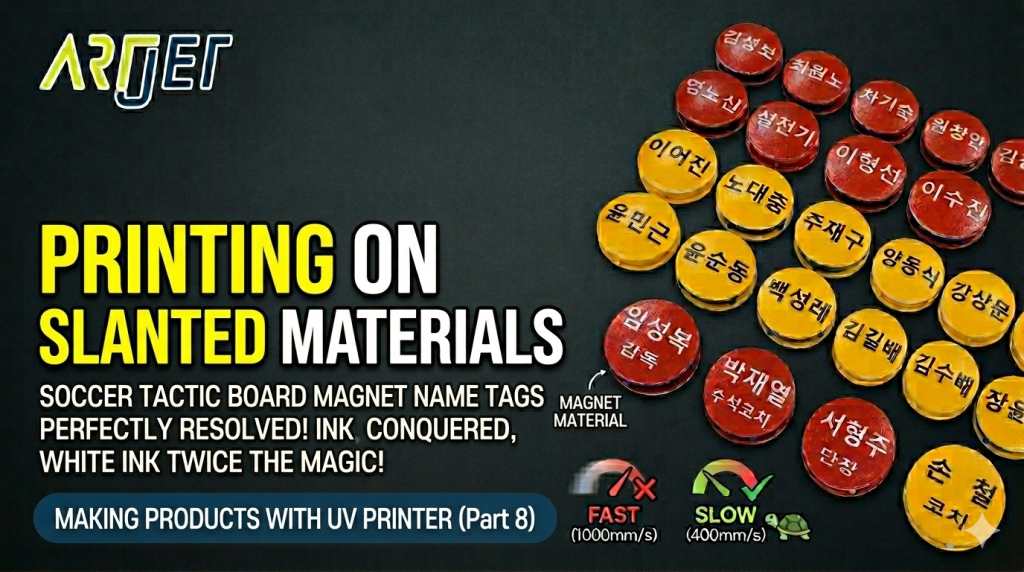
Today, we explain how to print on slanted name tags used on soccer tactics boards.
I. The Slanted Substrate — How to Print on Slanted Substrates
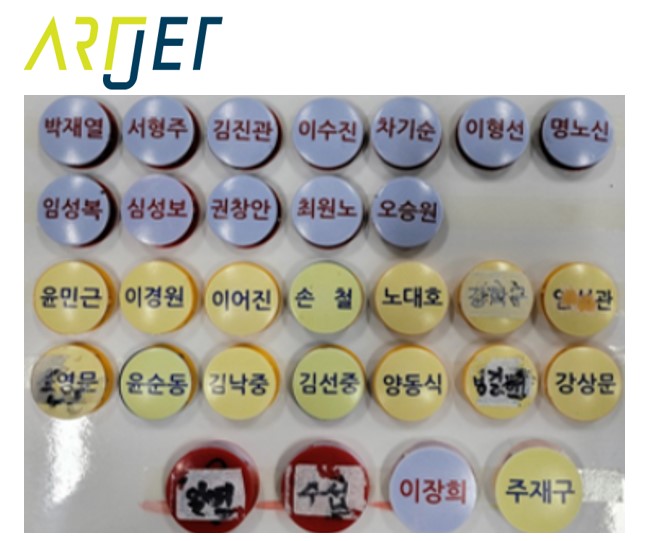
1. Name Tags Made Messy by Adhesive Sheets
- This was a job to print player names on magnets used on a soccer tactics board.
- Previously, adhesive sheets were used to label the names, but over time the sheets peeled off and became messy — so they requested UV printing on top.
- The adhesive sheets wouldn’t peel off cleanly, so we gave up on the stubborn remnants and printed over them.
- However, wherever adhesive sheet residue remained, dirty contours were visible no matter how thickly White ink was applied.
- If adhesive sheet residue remains on the print surface, it must be completely removed — otherwise the UV print will not look clean.
-
How to Print on Slanted Substrates
2. White Shielding Over Strong Base Colors
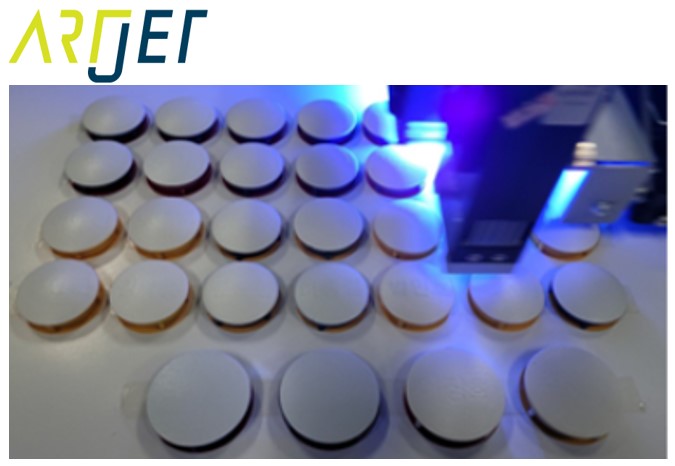
- This was a job to print a new player roster over surfaces where old names still remained.
- The names printed in red and black could not be fully shielded no matter how thickly White was applied.
- Strong-colored inks must be stripped off first before White shielding can work.
- Although the black and red were stripped, some residue remained — so White was printed twice.
-
How to Print on Slanted Substrates
II. How to Print on Slanted Substrates
1. Print Settings
- The substrate has a slanted surface, which means the stand-off exceeds the optimal 1.2 mm in that area.
- Since the gap between the head and substrate is larger than normal, the print mode was configured accordingly in the printer program.
- Single leave (uni-directional printing)
- Scan Speed “SLOW” and Feed speed “SLOW”
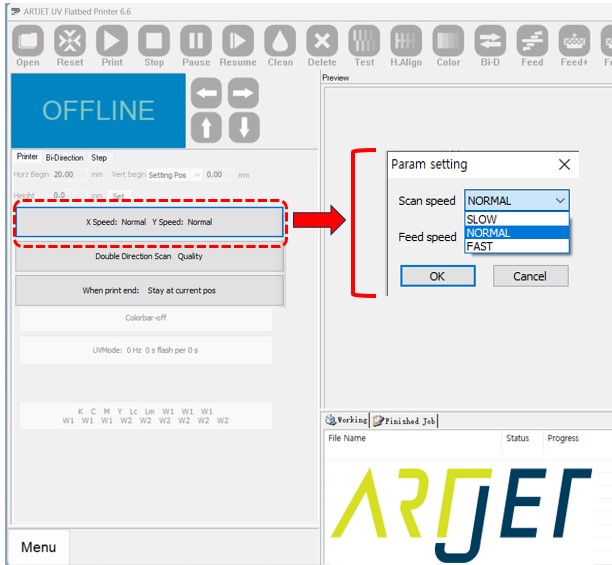
- Refer to the image below for the Head carriage speed (Scan speed) and Y-axis flatbed feed speed adjustment window.
-
How to Print on Slanted Substrates
2. Why SLOW Was Selected
- The printer program offers three Head Carriage speed modes: FAST, NORMAL, and SLOW.
- In FAST mode, the head carriage moves at approximately 1,000 mm per second.
- In NORMAL mode, approximately 800 mm per second.
- In SLOW mode, approximately 400 mm per second.
- The faster the head carriage moves, the more the falling ink is affected by the lateral inertia of the moving carriage.
- In particular, as the ink drop landing point gets farther away, the ink velocity decreases — making it even more susceptible to the carriage’s lateral movement.
- In other words: the faster the carriage speed + the farther the ink drop distance = the more ink misses its intended position.
- Slanted surfaces increase the ink drop distance, so the head carriage speed must be reduced to minimize inertia effects — allowing ink to land closer to the correct position.
- For this reason, when printing on slanted substrates, the head carriage speed must be set to the slowest option: SLOW.
3. Additional Notes on the Settings Window
- Head carriage speed (Scan speed) and Y-axis flatbed feed speed must be set to the same value.
- If the head carriage moves fast but the flatbed feed speed is slow, the head carriage must wait for the Y-axis feed to complete — and these accumulated timing errors can cause the printer logic to desync and stop printing.
- Therefore, when adjusting head carriage speed, the Y-axis feed speed must also be set to match.
- If Scan speed is FAST → Feed speed must be FAST
- If Scan speed is NORMAL → Feed speed must be NORMAL
- If Scan speed is SLOW → Feed speed must be SLOW
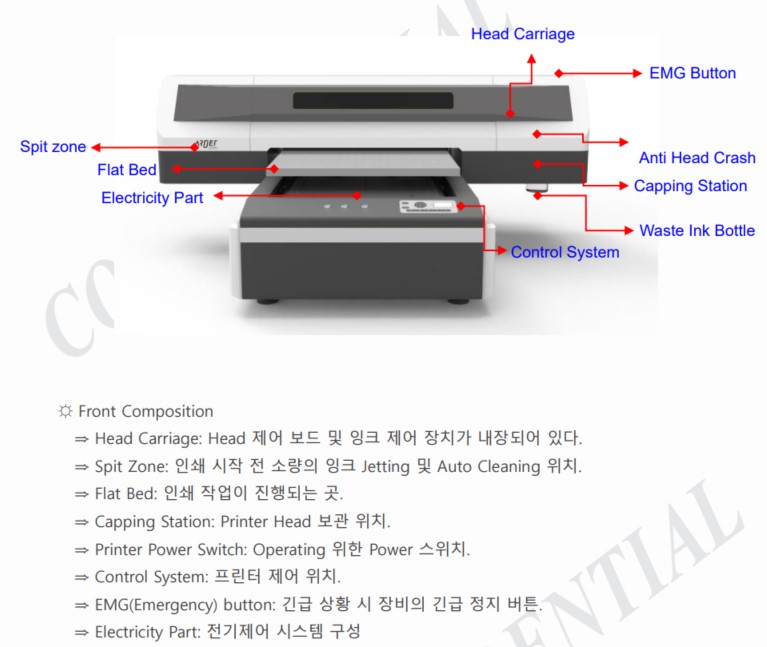
- For those unfamiliar with what “head carriage” means:
Although hidden by the cover, the large assembly that moves left and right during printing is called the head carriage.
“Feed speed” refers to the flatbed moving slightly forward or backward with each print pass. -
How to Print on Slanted Substrates
3. Print Time Trade-Off
- Since Carriage speed was set to SLOW, total print time inevitably increases.
- Additionally, because the substrate has contours, uni-directional printing was selected — making it even slower than bi-directional.
- White was printed twice due to the messy print surface — doubling the time for that step as well.
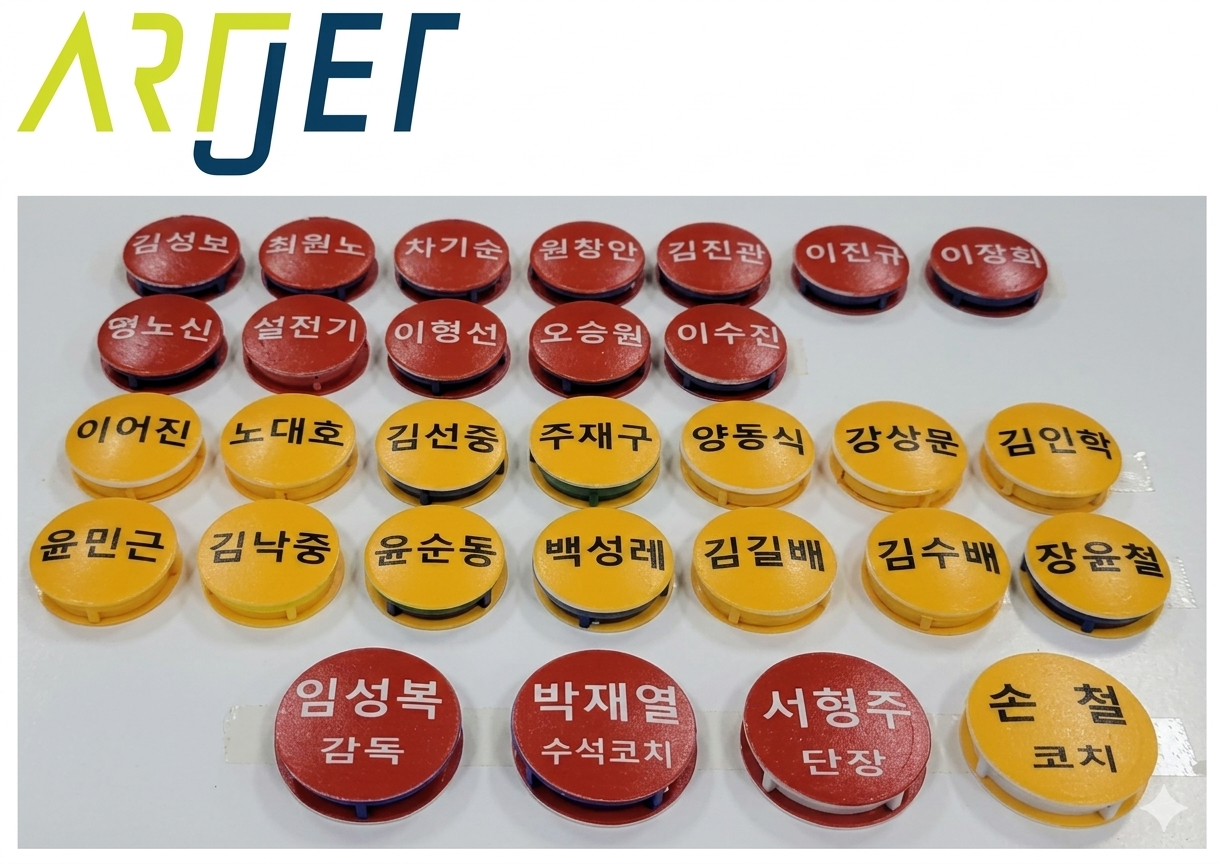
- Despite the longer print time, the result was acceptable — names were printed cleanly on the slanted surface.
-
How to Print on Slanted Substrates
III. ARTJET UV Printer
Having sold and serviced ARTJET UV printers for over five years, the most important lesson we’ve learned is this:
After product reliability, the most critical factor is accumulating troubleshooting data.
Any machine can develop problems depending on the environment, workload, and operator experience. What matters most in a real production setting is not “a machine that never breaks down,” but rather:
How quickly and accurately you can identify the cause and resolve the issue when something goes wrong.
ARTJET continuously collects and organizes real-world field data to support faster and more accurate problem resolution.
🎥 Print Quality Sample
💰 ARTJET Pricing & Sales Conditions
(Note: Exterior design has been updated)
🧾 Complete List of UV Printable Products

* Note: Exterior design has been updated.
※ This article is based on real field cases. Results may vary depending on your environment and machine configuration.