- Anyone who needs to print on the front of transparent acrylic, then flip it and print on the back
- Anyone who wants to learn how to precisely align front and back images
- Anyone confused about Flexi RIP’s Mirror option and image Rotation direction settings
- Anyone unfamiliar with the transparent film method for setting position references
- Anyone who doesn’t know which direction to flip the substrate when using Reverse Print
- The substrate must be flipped left-to-right only. Flipping it top-to-bottom will cause the front and back images to misalign.
- If the center of the transparent film is not cut out, vacuum suction will not reach the acrylic — LED heat may cause the substrate to warp and strike the print head.
- The RIP Mirror option, head direction, and printer program Reverse setting must all follow the manual sequence exactly for front-back alignment to be accurate.
- If the first image was printed using Reverse Print, the second image must also use Reverse Print.
- To align front and back precisely, the substrate must be transparent. Opaque substrates require crop marks.
- Print on transparent film first → cut out the center → leave the White border as a position reference.
- Front side RIP settings: Mirror OFF, head direction “⇐”. Back side RIP settings: Mirror ON, head direction “⇒”.
- Flip the substrate left-to-right, then position it precisely against the White border on the transparent film.
- Keep vacuum running at all times and secure the edges with tape where vacuum suction is blocked.
We are covering the various products you can make with a UV printer.
Today, we address a question that even experienced UV printer users often ask: “After printing on the front side, can I flip the substrate and print a different image on the back — with precise front-to-back alignment?”
I. Printed Image Explanation — How to Flip the Substrate and Align Front-Back Printing
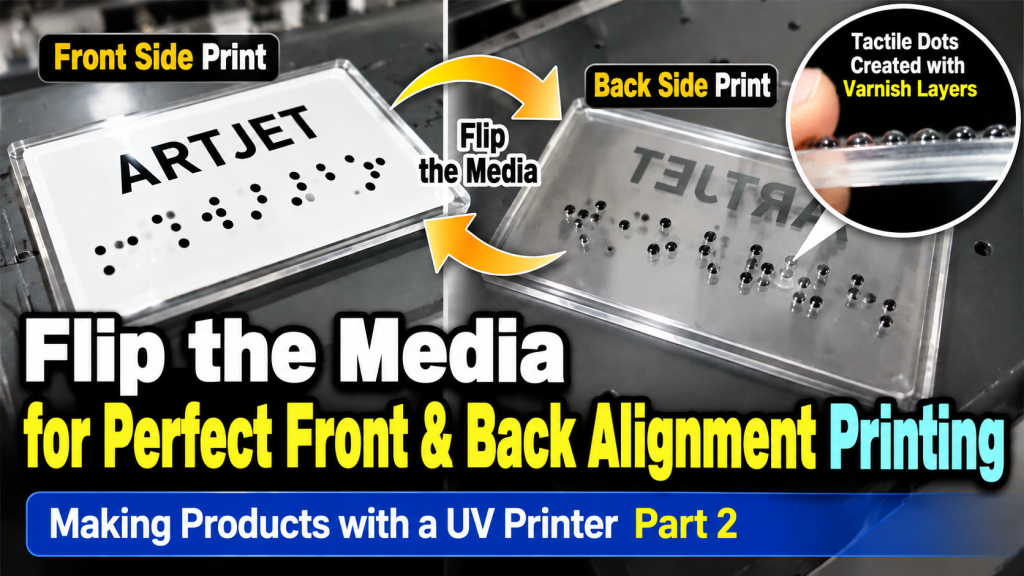
1. The printing method for the image shown below is explained as follows.
- The substrate in the photo below is 1.5t transparent acrylic.
- To precisely align front and back images after flipping the substrate, the material must be transparent.
- On the front side of the acrylic, White was printed across the entire surface, while Color was used to print only the alphabet letters and braille dots flat.
- On the back side of the acrylic, the substrate was flipped and positioned, then Varnish was printed aligned to the Color braille dot positions.
- The Varnish was layered to create a raised dome effect, completing the braille.
- The reason the Varnish appears black is that the black Color printed on the back of the acrylic shows through — making the Varnish look black.
- If the braille dots were printed in red, blue, or another color, that color would show through instead.
-
 How to Flip the Substrate and Align Front-Back Printing
2. For Non-Transparent (Opaque) Substrates
- ‘A square substrate has all edges at exactly 90 degrees’ — this is a common assumption, but when you actually measure the angles, they are never perfectly 90°.
- Since the substrate is not a perfect square or rectangle, aligning one side as a reference means the opposite end will be slightly off from the intended position.
- If you flip the substrate upside down and print in this state, the starting point may align, but the endpoint will not match.
- For non-transparent substrates like standard Forex (foam board), to precisely align front and back printing:
- The substrate itself must have crop marks cut into it, and the UV printer flatbed must also have corresponding registration marks — so that position values can be matched using those references.
II. Step-by-Step Printing Method — How to Flip the Substrate and Align Front-Back Printing
Here is a brief overview of the entire process, followed by detailed step-by-step instructions.
- RIP the front-side image through Flexi RIP (Mirror option and left-right direction settings are critical)
- Print the RIPped image on transparent film first to establish the position reference
- Place the acrylic on top of the transparent film and print the same image to complete the front side
- Explanation of whether to flip the substrate left-right or top-bottom after printing
- RIP the back-side image through Flexi RIP (Mirror option and left-right direction settings are critical)
- Print the back-side image
1. Flexi RIP Settings for the Front-Side Image
1_1. Flexi RIP First Screen
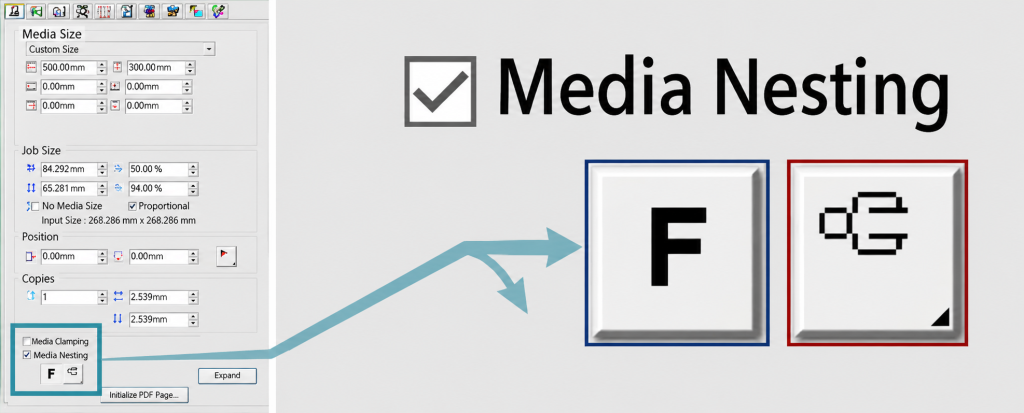
- Our printer automatically mirrors the image when printing in Reverse mode.
- Because of this, you do not need to select the ‘Mirror’ option in the RIP.
- In Flexi RIP, do not select the image Mirror option — leave it as “F” (this is the Mirror option toggle — clicking it again flips the F horizontally, enabling Mirror)
- In the image Rotation option, set the head direction to face “⇐”
-
 How to Flip the Substrate and Align Front-Back Printing
1_2. RIP Fourth Option Screen
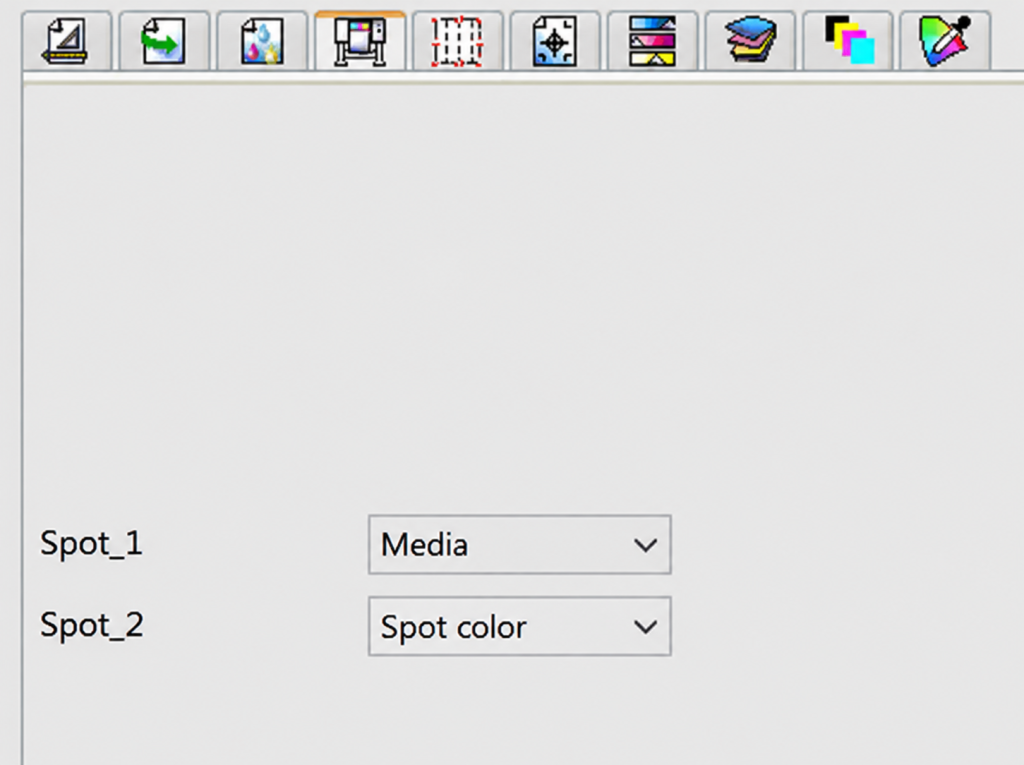
- Click the 4th icon at the top of the screen shown below to open this window.
- In the Spot_1 White option, select “Substrate” — this will automatically print White across the entire image file.
- In the Spot_2 Varnish option, since only White and Color need to be printed, select “None.”
-
 How to Flip the Substrate and Align Front-Back Printing
2. Print on Transparent Film to Establish Position, Then Print the Front-Side Image
2_1. Printer Program Option Settings
- Since the acrylic is transparent, go to Menu → Spot Color options and select [Reverse Print] for back-side printing.
- White density is set to 50% (6 channels × 50% = 300% White density).
-
 How to Flip the Substrate and Align Front-Back Printing
- The print mode doesn’t matter too much, but I used bi-directional output in Quality mode.
-
 How to Flip the Substrate and Align Front-Back Printing
2_2. Print on Transparent Film to Establish Position References
- After printing on the front of the acrylic, to flip the substrate and place it in the exact position, the printer flatbed itself must have position markings — even after the substrate is removed.
- This is achieved using a transparent film.
- Place the transparent film on the flatbed.
- Vacuum must remain active at all times to prevent the position from shifting.
- Tape the top of the transparent film to keep it in place.
- The photo below shows the tape applied at the print start point, with the front-side Reverse Print completed.
-
 How to Flip the Substrate and Align Front-Back Printing
 - Once printing on the transparent film is complete:
- Cut out the center as shown in the photo below, leaving only the White border around the edges.
- If the center is not cut out, vacuum suction will not reach the acrylic substrate — and the LED heat during printing may cause the substrate to warp and hit the head.
- Cut the center to allow vacuum to act on the acrylic, and leave the White border as the position reference.
-
 How to Flip the Substrate and Align Front-Back Printing
3. Print the Front-Side Image on the Acrylic
- Place the transparent acrylic on the flatbed.
- Tape the edge areas where vacuum suction is blocked by the transparent film.
-
 How to Flip the Substrate and Align Front-Back Printing
- After changing only the print height to match the acrylic thickness, print the same image from the transparent film onto the acrylic.
- The photo below shows the first image mid-print in Reverse mode. If you look closely, black dots are printed in Color, followed by White being printed.
-
 How to Flip the Substrate and Align Front-Back Printing
4. Which Direction to Flip the Substrate
- Once printing is complete, flip the substrate left-to-right (not top-to-bottom), as shown by the arrows in the photo below.
- The head direction in the RIP settings, the Mirror option in the program, and the substrate flip direction must all follow the manual exactly — only then will the front and back image positions align precisely.
- You must follow every step from the beginning to the end exactly as described to achieve accurate front-back image alignment.
-
 How to Flip the Substrate and Align Front-Back Printing
 - After flipping the substrate, position it precisely against the White border remaining on the transparent film.
-
How to Flip the Substrate and Align Front-Back Printing
- Just like the first image print, tape the edge areas where vacuum suction is blocked.
-
 How to Flip the Substrate and Align Front-Back Printing
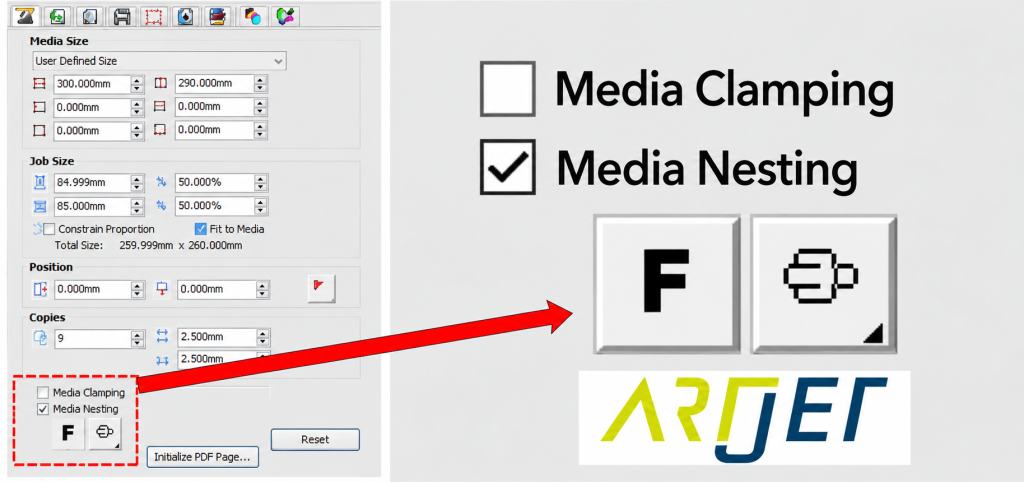
5. RIP the Back-Side Image Through Flexi RIP (Mirror Option and Direction Settings Are Critical)
- This is the same option window used for the first image.
- For the second image, select Mirror so the F is flipped horizontally, as shown in the photo below.
- Change the head direction to the opposite of the first image: “⇒”
-
 How to Flip the Substrate and Align Front-Back Printing
6. Print the Back-Side Image
- In the printer program, go to Menu → Spot Color options and use the same “Reverse” setting as the first print.
- If the first image was printed in Reverse Print mode, the second image must also be printed in Reverse Print mode.
- The second image requires Varnish to create raised braille dots — meaning the Varnish must be layered thick. In other words, layered printing is needed.
- The method for creating braille through layered printing was explained in the previous article.
- Follow the settings described in the link below, and the Varnish will print precisely aligned to the black circle positions printed on the back side.
- Braille Printing
- The content explained today is also available as a video via the link below.
- How to Flip the Substrate and Align Front-Back Printing (Video)
IV. ARTJET UV Printer

핑백: How to Print on Slanted Substrates — UV Printer Products (Part 8) ARTJET 2026
핑백: Creating Epoxy Effects with Varnish — UV Printer Product Guide (Part 11) ARTJET 2026