- Anyone whose Sai Rip suddenly shows a Dongle USB error message after working fine
- Anyone who has tried switching USB ports and reinstalling but still can’t resolve the issue
- Anyone whose Dongle USB stopped being recognized after a Windows update
- Anyone whose Dongle USB works on other PCs but fails on one specific machine
- Anyone dealing with a SafeNet Sentinel Driver conflict preventing Sai Rip from launching
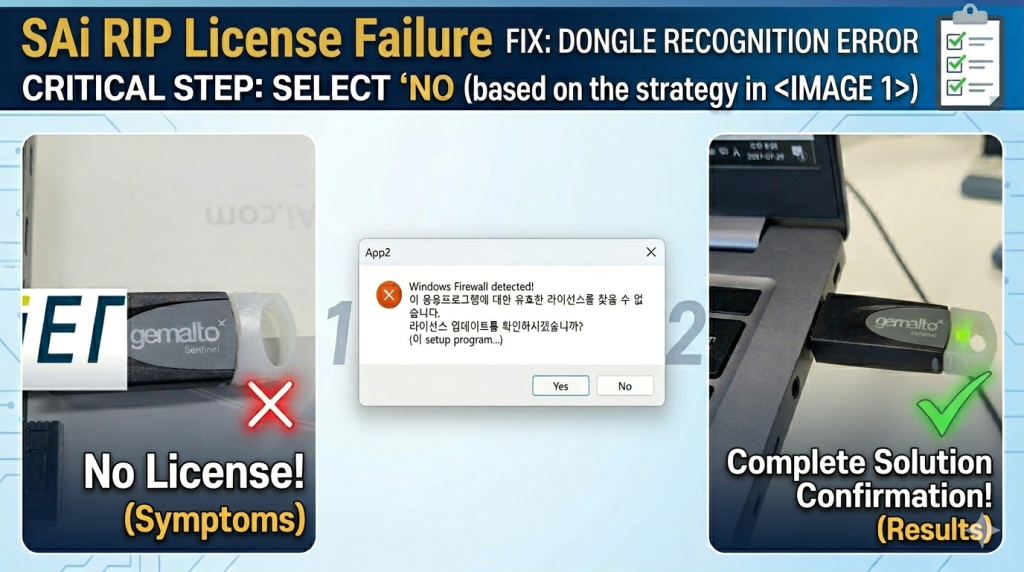
- During Sentinel_Protection_Installer setup, always click “NO” when asked about firewall settings. Clicking YES can weaken security and cause network conflicts that make Dongle USB recognition unstable.
- Fully uninstall the existing Sai Rip program before reinstalling. Skipping this step will cause conflicts.
- Windows automatic updates can trigger this issue — avoid running Windows updates the night before critical work sessions.
- Before troubleshooting the driver, check whether the Dongle USB light comes on when plugged into a different PC to rule out physical damage.
- Dongle USB recognized on other PCs → Driver conflict on this PC, the Dongle itself is fine
- Issue started after a Windows update → SafeNet Sentinel Driver version conflict is the cause
- Fix sequence: Uninstall Sai Rip → Reinstall (with SafeNet 7.6.7) → Remove 7.6.7 → Install 7.6.9 → Click NO
- Once complete, the Dongle USB light will turn on and Sai Rip will launch normally
Sai Rip Dongle USB Not Recognized — SafeNet Sentinel Driver Conflict Fix After Windows Update
I. Symptom — Sai Rip Dongle USB Not Recognized
1. Sai Rip suddenly stops connecting after working fine
The Rip program that had been working without any issues suddenly displayed only the error message below and would not connect.

- Clicking both Yes (Y) and No (N) did not resolve the issue.
- There are several situations that can trigger this error message:
- Launching the Rip software without the Dongle USB plugged in.
- The Dongle USB is plugged in, but the USB port itself is damaged.
- The Dongle USB itself is physically damaged.
- The Dongle USB was properly inserted, and different USB ports were tried — but the error message persisted.
- To check whether the Dongle USB was damaged, Sai Rip was installed on a different PC for testing.
Testing on a different PC:
- Sai Rip was installed on a work PC and also on a separate laptop used occasionally.
- The Rip software launched without any issues on both machines.
- When the Dongle USB was plugged back into the original problem PC, the error message appeared again and Sai Rip would not run.
Closer inspection of the Dongle USB revealed the following:
- When the Dongle USB was plugged into the work PC and the laptop, a light appeared at the tip of the USB — indicating it was being recognized.

- On the problem PC, the light did not appear at all.

- To rule out a faulty USB port, a regular USB device was plugged in — it lit up and worked normally.
The conclusion: the Sai Rip Dongle USB (Lock key) was only failing to be recognized on that specific PC.
- The system had been working fine the day before, so the question was: what changed between yesterday and today?
- It was then recalled that a Windows update notification had appeared, and the PC had been restarted after applying it.
- The Windows update was the root cause of the problem.
II. Resolution — Sai Rip Dongle USB Not Recognized
Several approaches were tried, and an online search for the same issue was conducted — but no matching results were found in Korean. An English-language search was then attempted, and the solution was eventually found on the SAi Rip support site. If you are experiencing the same issue, the steps below should resolve it.
1. Uninstall the existing Sai Rip program and reinstall it.
- Uninstall the currently installed Sai Rip program.
- Reinstall Sai Rip (refer to: Driver and basic settings after installing Sai Rip ARTJET 2025).
- During installation, when the screen shown below appears, make sure “SafeNet Sentinel System Driver 7.6.7” is checked, then click “Next.”

2. After reinstalling Sai Rip, remove the driver that needs to be replaced.
- Once Sai Rip installation is complete, go to “Programs and Features” (Add or Remove Programs) and
- uninstall SafeNet Sentinel System Driver 7.6.7 which was installed alongside Sai Rip.

3. Install the newer version: “Sentinel_Protection_Installer_7.6.9.”
- Now that SafeNet Sentinel System Driver 7.6.7 has been removed, install the newer version: Sentinel_Protection_Installer_7.6.9.
- Click the link below to download Sentinel_Protection_Installer_7.6.9.
- Sentinel_Protection_Installer_7.6.9
- Extract the ZIP file and run the installer.
4. Detailed installation steps:
- After extracting, the contents will look like the photo below. Double-click Sentinel_Protection_Installer_7.6.9 as shown on the left.
- An installation window will appear. Check the box in the red border as shown, then click [Next].

- Confirm that “Complete” is selected, then click [Next].
- The next screen appears — click [Next] again.

- Up to this point, you have only been clicking Next — but on the screen shown below (left), you must click “NO.”

- If you click YES: Windows firewall settings will be modified, which can create security vulnerabilities and cause network conflicts — sometimes making Dongle USB recognition even more unstable.
- If you click NO: The driver installs cleanly for local (current computer) use only. For most individual UV printer setups, clicking ‘No’ is the correct and recommended choice for security and stability.
- After clicking No, installation proceeds as shown on the right. Click [Finish] when complete.
5. After removing SafeNet Sentinel System Driver 7.6.7 and installing Sentinel_Protection_Installer_7.6.9:
- Plug the Dongle USB into the problem PC and launch Sai Rip.
- As shown in the photo below, the light that was previously absent will now appear on the Dongle USB — confirming it is recognized.
- Sai Rip will launch without any errors.

IV. ARTJET UV Printer

핑백: How to Create Spot Colors in Flexi RIP and Fix Common Problems — Sai RIP Issues (Part 3) ARTJET 2026
핑백: Color Shift After Applying Spot Colors in Flexi RIP — Sai RIP Issues (Part 4) ARTJET 2026
This was a very worthwhile read today.
thank you so much for your kind comment