
- Anyone experiencing zero ink jetting during nozzle patterns or printing despite normal carriage motion
- Anyone who performed pumping/cleaning due to suspected clogging, where waste ink flows but output remains zero
- Anyone observing abnormal LED patterns (blinking or incorrect shut-off) on the head board
- If the LEDs don’t turn off in the normal pattern about 7 seconds after pressing the Power button, or if one LED keeps blinking, immediately turn the power OFF
- Leaving it on in this state can damage the printhead, DATA cables, or the control board
- All board, head, and DATA cable inspection work must be done with power OFF
- Normal motion + zero output often points to head-board communication (SW timing/signal) issues rather than physical clogging
- Normal: After Power ON, 2 LEDs light up simultaneously and turn off simultaneously after ~7s → then connect the software
- Abnormal: LEDs don’t turn off simultaneously, or one keeps blinking → turn OFF immediately and run an isolated inspection
I. Symptoms — When Head Board LEDs Blink
The software connects fine, and all mechanical motions are normal. However, during printing, the head carriage moves back and forth, but no ink is jetted at all.
“Is the head clogged?” Thinking this, you print a nozzle pattern, but the result shows zero nozzles — a completely blank output. It should look like the picture below, but no color comes out at all.
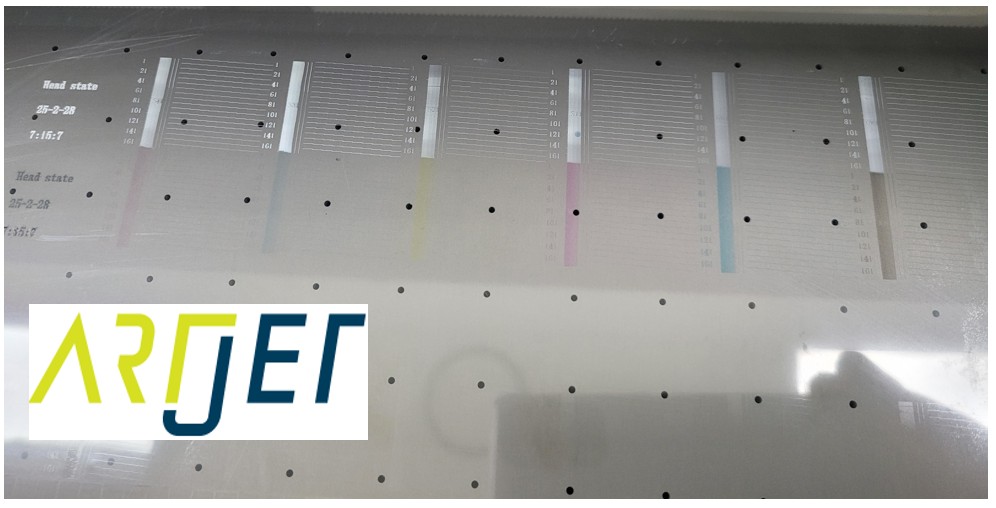
Since everything except the ink flow seems normal, you might try pumping or cleaning. Strangely, pumping shows ink flowing normally into the waste tank.
The head is not clogged, pumping works, and motion is normal — yet output is zero. In this case, you must suspect a communication/signal (board · software) issue.
II. Simple Case — Resolving via “SW Connection Timing” — When Head Board LEDs Blink
This symptom can be a simple fix or require multi-variable inspection. Let’s start with the easiest solution.
The core issue is connecting the software before the head board and printhead establish a normal handshake.
- Pressing the Power button on the touch panel supplies power to the carriage board
- 2 LEDs in the center of the board turn on, then simultaneously turn off after about 7 seconds
- Normal communication begins only after these 2 LEDs turn off
- Connecting the software after this point ensures normal operation
If you connect the software before the LEDs turn off: the software attaches before the board-head communication is finalized. Motion remains normal, but the board fails to send jetting signals to the head, resulting in zero output.
Solution: wait for the 2 LEDs to turn off simultaneously (about 7 seconds) after hitting Power, then connect the software.
III. Complex Case — Abnormal LED (Continuous Blinking) / Isolated Inspection — When Head Board LEDs Blink
- Instead of turning off together within 7s, the LEDs turn off at different times
- Subsequently, one LED keeps blinking intermittently
[Video placeholder — original shortcode:
Possible causes for board blinking are numerous:
- Failure of one of the Color / White / Varnish heads
- Poor contact or damage to the board-to-head DATA cable
- Damage to the head board main chip (board failure requires replacement; there is no other fix)
All work must be performed with the power OFF.
Since we must check the board, 3 heads, and 3 DATA cables, remove the printer cover first for easier access.

A. Verifying the Board
- Disconnect all Color / White / Varnish cables from the head board
- Turn the power ON. If the 2 LEDs turn off simultaneously and there is no blinking, the board is normal
- If they still fail to turn off together or one blinks, the board itself is faulty — replacement is necessary
B. Verifying Individual Heads (If the Board Is Normal)
- With power OFF, connect only the Color head DATA cable to the board
- Turn power ON. If the LEDs turn off normally, the Color head is normal
- If they fail to turn off or blink, the Color head (or its cable) is the cause of the error
- Try replacing the DATA cable with a new one first. If the symptom persists, the head requires replacement
If Color is normal, repeat the process for White → Varnish until the faulty component is identified.
This topic was previously covered in our Head Issues index. We’re emphasizing it again here because of the high risk of damaging expensive components.
Please refer to the link below for detailed step-by-step instructions and safety warnings.
V. ARTJET UV Printer

핑백: Head Pin Value Offset Precision Tuning — Electronics Board / Software (Episode 8) ARTJET 2026
핑백: X-Axis Start Position Keeps Shifting — Electronic Board / Software Issue (EP.10) ARTJET 2026
핑백: How to Reinstall the Printer Program — Electronics / Software Issues (EP.12) ARTJET 2026
핑백: UV Printer Electronics Software Issues 12 Articles by Symptom