
- Your ARTJET UV printer moves/initializes, but printing doesn’t actually start (only status messages)
- You suspect software settings were changed and need a safe way to restore known-good values
- Head carriage speed / G mask / Quality mode may have been altered or corrupted after a crash
- You need to determine whether this is a software-side setting issue vs. a board/communication fault
- Do not repeat test prints aggressively while software values are unknown — repeated attempts can lead to head damage or unstable board behavior
- Before running nozzle tests or production prints, verify key modes (speed / quality / masks) first
- When rebooting, follow the correct power-off / power-on sequence to avoid communication errors
- If the printer “runs” but no output occurs, check software settings first
- Verify head carriage speed → Normal, Normal
- Verify G mask / print condition → Quality (not Off)
- If settings look corrupted or unknown, restore a known-good Config file and reboot properly
I. Symptom — How to Restore Factory Software Settings
“I think I clicked something in the ARTJET software… and now the settings look different.”
During ARTJET software initialization, the software may fail to load the previous profile and default to unexpected values. Two common examples:
- Head carriage speed changes from Normal, Normal to Normal, Slow
- Print condition / G mask changes from Quality to Off
In this state, you may see only a “printing” message, but the printer does not proceed with real output/nozzle patterns.
Before restoring a Config file, follow this quick check order:
- Force-close the ARTJET software (use Task Manager)
- Reconnect and relaunch the software
- Set Head carriage speed to Normal, Normal
- Set G mask / print condition from Off → Quality
In the real world, software can crash, profiles can fail to load, and settings can be changed without clear visibility. When you can’t confidently identify what changed, the safest path is to restore a known-good configuration.
If you’re not sure what was changed, import the installation Config file and return to the baseline settings.
II. Fix — How to Restore Factory Software Settings
We complete the full setup in our office before delivery.
- When a unit arrives, we install ink, finish all initial setup, and verify stable printing before shipment
- After setup, we export and save the full configuration from the ARTJET software
- If the software is deleted, corrupted, or settings are changed incorrectly after delivery, we can quickly restore the baseline
- This also helps after printhead replacement: when offsets or bidirectional alignment values are updated, we save a dated config to reload later if needed
How to Export (Save) a Config File
- In the ARTJET software, click the lower-left menu → Config Manager
- In the Config Manager window, click [Out to File]
- Choose a file name and save
- Use numbers or English letters only for the file name.
- Example: if saved on Feb 25, 2026, use 260225
- Avoid special characters or non-Latin text, which may cause the software to fail to recognize the file
- Whenever offsets / bidirectional values / key settings are updated, save a new config with that date
- Keep at least one recent config, and ideally one older backup in case a file becomes corrupted

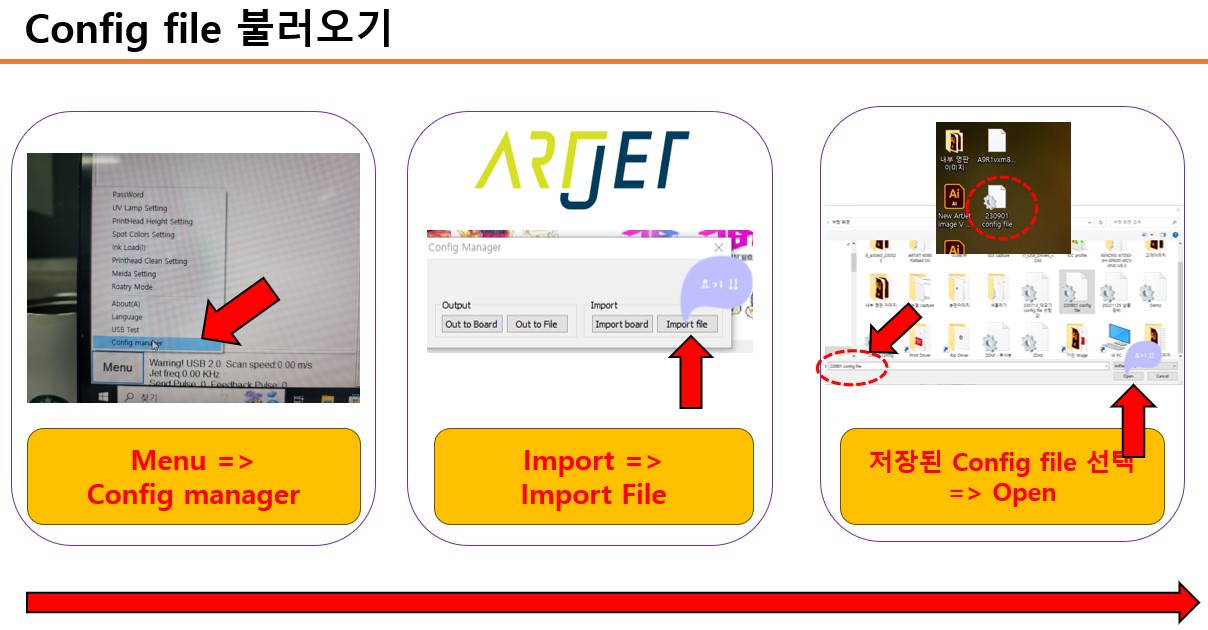
To apply the installation baseline or a previously saved profile, import the Config file.
- Lower-left menu → Config Manager
- In the Config Manager window, click [Import File]
- Select the saved config file → Open
- After importing, you must close and restart the ARTJET software for the new values to apply.
Field recommendation: after importing a Config file, power-cycle the entire system (not just the software) to avoid hidden communication states.
- Follow the shutdown order exactly
- Shutdown sequence: ARTJET software off → Power button off → Main power switch off → wait 1 minute
- Startup sequence: press the Power button, then wait 7–10 seconds. Confirm the two center LEDs on the board turn off together and there is no remaining blinking, then connect the software.
- Why this matters: “The printer moves, but no ink comes out / no real printing happens.”
- Only after confirming stable board status, connect the ARTJET software
IV. ARTJET UV Printer
