
Touch Panel Power Issue – Control Board / Software Issues Part 3
✅ Who Should Read This
- When the power is on, Vacuum and LED Lamp are normal, but only the touch panel doesn’t turn on
- When the ARTJET software runs but only shows Offline status
- When there’s no response even after reconnecting the USB or rebooting the power
- Users considering replacing the mainboard due to suspicion of a defect
⚠️ Precautions (Protecting Expensive Parts)
- The mainboard, USB board, and touch panel board are expensive components. Don’t start by disassembling the unit
- First, check whether the 24V voltage is cut off
- It’s very risky to judge a board as defective before checking the status of the Emergency button
- Misdiagnosing a simple power cutoff as a board defect leads to unnecessary costs
🧭 Key Summary
- The touch panel power structure is Main Board → 24V Supply
- Vacuum/LED normal + panel only OFF → high probability of a voltage cutoff
- If the Emergency button is activated, the 24V is cut off
- Checking the cutoff circuit takes priority over assuming a board defect
📋 Control Board / Software Issues — Full Series List
We are documenting control board (including head board) and software issues in order. This list is updated with each new part.
03Touch Panel Power Issue
We are covering control board (including head board) and software issues.
In the first session, we discussed “the printer moves, but no ink comes out / no real printing happens.”
In the second session, we explained “how to restore software settings to the original installation values.”
Today, in our third session, we’ll cover the problem where the touch panel doesn’t turn on even when the power is switched on.
I. Symptoms — Touch Panel Power Issue
1. Current Situation
“When I run the ARTJET software, there’s no operation and it says Offline.”
“I see. Could you try unplugging and replugging the USB? Before you do that, please turn off the entire printer power and turn it back on.”
“I’ve tried that, and I’ve also tried plugging the USB into a different port, but it’s not resolved.”
2. Further Verification
“Sir, are there any other symptoms?”
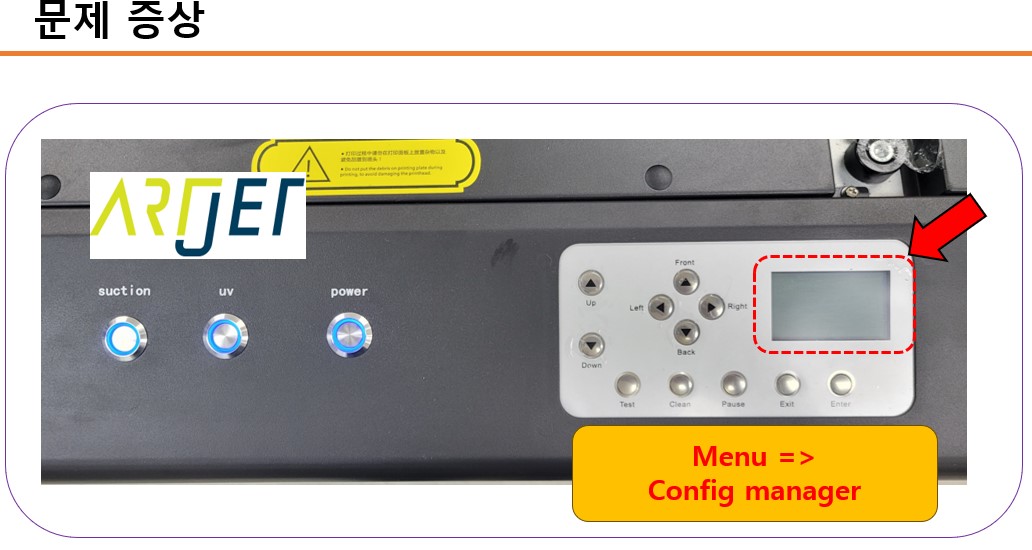
“Actually, the Vacuum and LED lamp are getting power normally, but the touch panel won’t turn on. The light on the Power button is on, though.”
“There’s a wire that supplies electricity to the touch panel, and it seems the power isn’t reaching it. Would you like to try unplugging and replugging that wire?”
After that, I explained how to disassemble the unit to see the bottom of the touch panel. Later, I was contacted again.
“Team leader, I tried it, but it’s still not fixed.”
II. Resolution — Touch Panel Power Issue
1. Main Board and Touch Panel Board
The ARTJET board is mainly composed as follows:
- Main Board: mounted on the back of the printer, primarily responsible for motion
- USB Board: mounted on the back of the printer, receives ripping data and transmits it to the carriage board
- Carriage Board: a board on top of the head carriage that receives ripping data from the USB board and delivers it to the printhead
- Touch Panel Board: the touch panel board on the front of the printer; it holds simple operation buttons, but if this board has an issue, initializing will not occur
24V enters the main board, and the main board’s 24V is passed on to the touch panel board to supply it with power.
2. Main Board and Touch Panel Board That Never Had Issues
Since these boards had never been an issue before, I was quite perplexed. Suddenly, one suspicion came to mind.
“Hello, sir?”
“I’m not doing so well. Ha ha ha.”
“Could you try pressing the Emergency button and then releasing it again?”
“Pardon?”
“In the past, when I went to install equipment, there was a symptom just like yours. The Vacuum and LED were normal, but even when the Power button was pressed — with the button light on normally — the touch panel wouldn’t turn on.”
“Previously, when removing the printer cover, I cut the Emergency button wire and taped it back together…”
“Then please remove the tape and check the connection status.”
Five minutes later, the customer called.
“What should I do?… It works immediately.”
“That’s a relief, sir.”
“The part I had taped together had come apart.”
In the end, the Emergency button was activated, cutting off the 24V, and it was resolved by releasing/reconnecting it.

III. UV Printer Basics · Troubleshooting · Product Guides
We have organized our UV Printer content below. Click an item to read the full post.
1) Ink Supply & Cleaning Issues
2) Head Related Issues
For deeper technical knowledge: Print Head Basics — 9 Articles
3) Mechanical Issues
4) RIP Software
5) UV Printable Products — Full Summary
IV. ARTJET UV Printer
Selling and maintaining ARTJET UV printers for over 5 years, there’s one thing we’ve felt is most important.
What’s as important as product stability is the accumulation of troubleshooting data.
Problems can occur with any equipment depending on the usage environment, working conditions, and user proficiency. What matters at an actual production site is not “equipment with zero problems,” but:
How quickly and how accurately we can find the cause and resolve it when a problem occurs.
ARTJET continuously collects and organizes actual problem data from the field to support faster and more accurate problem resolution.
🎥 View Print Quality Samples
💰 ARTJET Pricing & Sales Conditions
(Note: Exterior design has been updated)

※ This article is based on actual field cases. Results may vary depending on the environment and equipment configuration.
핑백: Printing in the Wrong Position _ Board/Software Issue (Part 4) ARTJET 2026