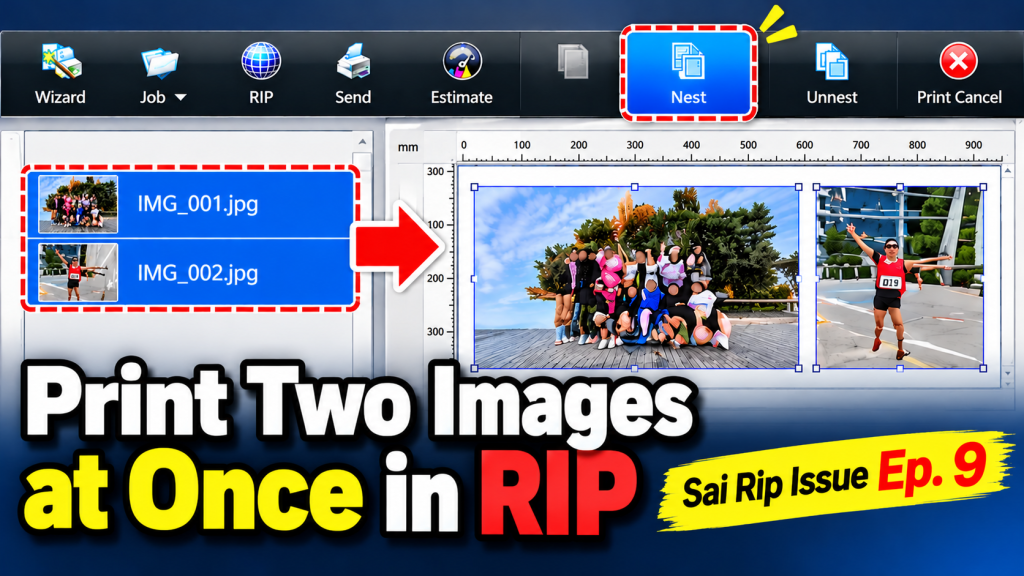
- You want to print two images onto a single substrate in one pass
- Merging images in Illustrator every time feels like unnecessary extra work
- You’re discovering the [Nest] feature in Sai Flexi RIP for the first time
- You want to arrange and resize two images to fit your substrate before printing
- You want to get the most out of every piece of print material
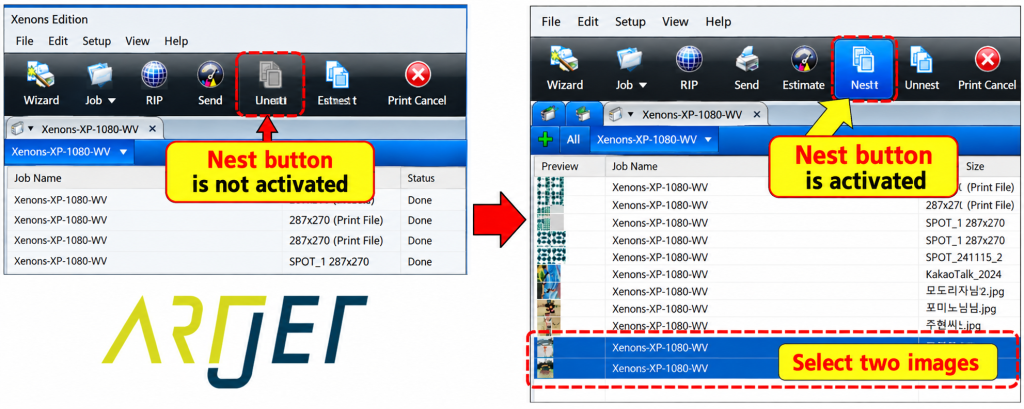
- The [Nest] button only activates when two or more images are selected at the same time. It remains inactive when only one image is selected.
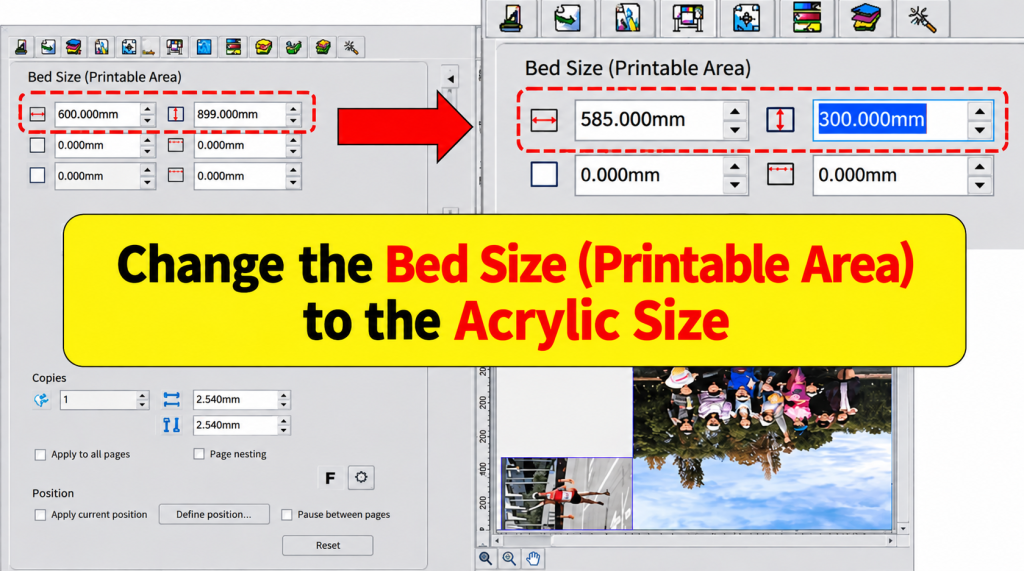
- For convenience, set the Flatbed size to match your actual substrate size before starting. This makes it easy to see at a glance whether the combined images exceed the print area.
- The [Margin Adjustment] feature for setting X and Y start positions may not work correctly. Use the mouse to drag images into position manually.
- After resizing each image, always confirm nothing exceeds the printable area before starting Ripping.
- Where to find it → Select both images in RIP → [Nest] button activates
- Flatbed size → Change to actual substrate size to instantly see if images exceed the print area
- Image layout → Resize each image, then drag into position with the mouse
- [Margin Adjustment] X/Y start point → May not work reliably — use mouse drag instead
- Benefit → Print two image files in one pass directly from RIP, no Illustrator merging needed
Printing Two Images at Once in Flexi RIP
I. Can You Combine Two Images Directly in the RIP? — Printing Two Images at Once in Flexi RIP
A question from a customer
A business owner who had been using ARTJET for over a year called out of the blue.
“Is there a way to combine images and print them together directly in the RIP software?”
“I don’t think that feature exists. Can’t you just merge the images in Illustrator?”
“That still takes time. It would be much faster if I could do it right in the RIP.”
“I’ve never tried that myself, so I’m not sure…”
“Understood, I’ll look into it.”
About 30 minutes later, they called back.
“I found it! If you select two images in the RIP, a [Nest] button activates — and that’s the one. You should write a blog post about this sometime^^”
Acrylic too large to fill with a single image
- We typically order acrylic cut to 585 x 300mm.
- For this job, two photos needed to be printed onto the same piece of acrylic.
- Normally, we would print the first image, then adjust the X and Y start position and print the second separately.
But the Nesting feature the customer mentioned came to mind — so we decided to give it a try.
The acrylic and image dimensions were as follows:
- Acrylic size: 585 x 300mm
- Image 1: 212 x 141mm
- Image 2: 370 x 493mm
- The goal: print both images onto the 585 x 300mm acrylic in a single pass.
- Each image would be resized to fit within the full acrylic dimensions (585 x 300mm).
II. Step-by-Step Walkthrough — Printing Two Images at Once in Flexi RIP
1. Load both images into the RIP software
1-1. Load Image 1 and Image 2 into Sai Flexi RIP.
- Image 1 dimensions: 212 x 141mm.
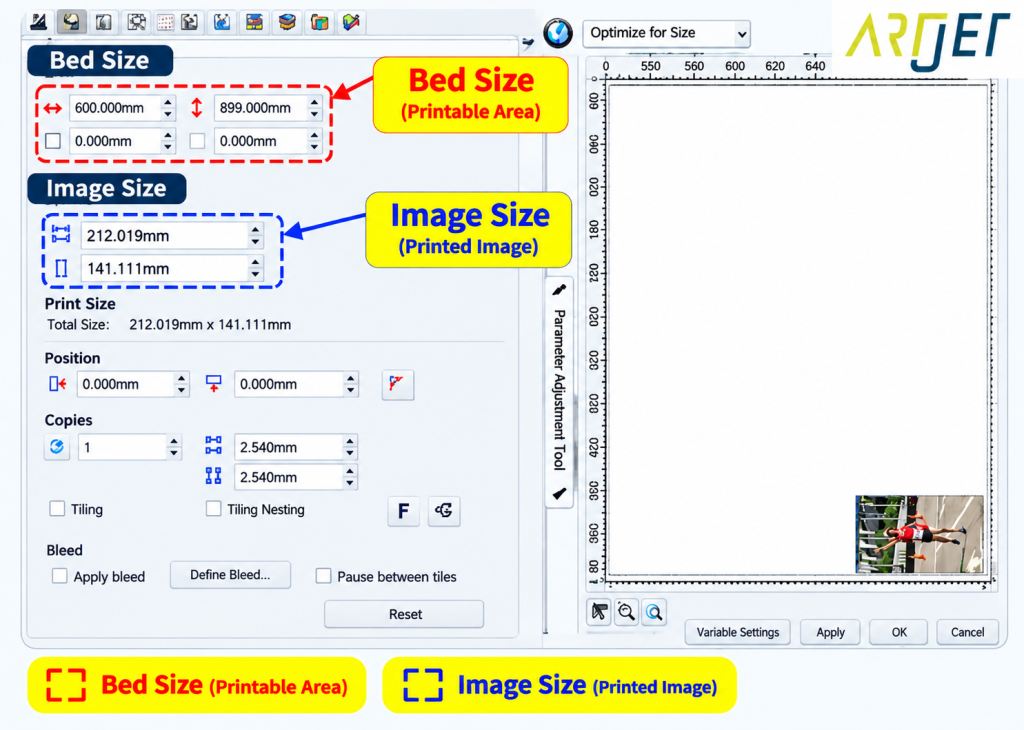
- Image 2 dimensions: 370 x 493mm.
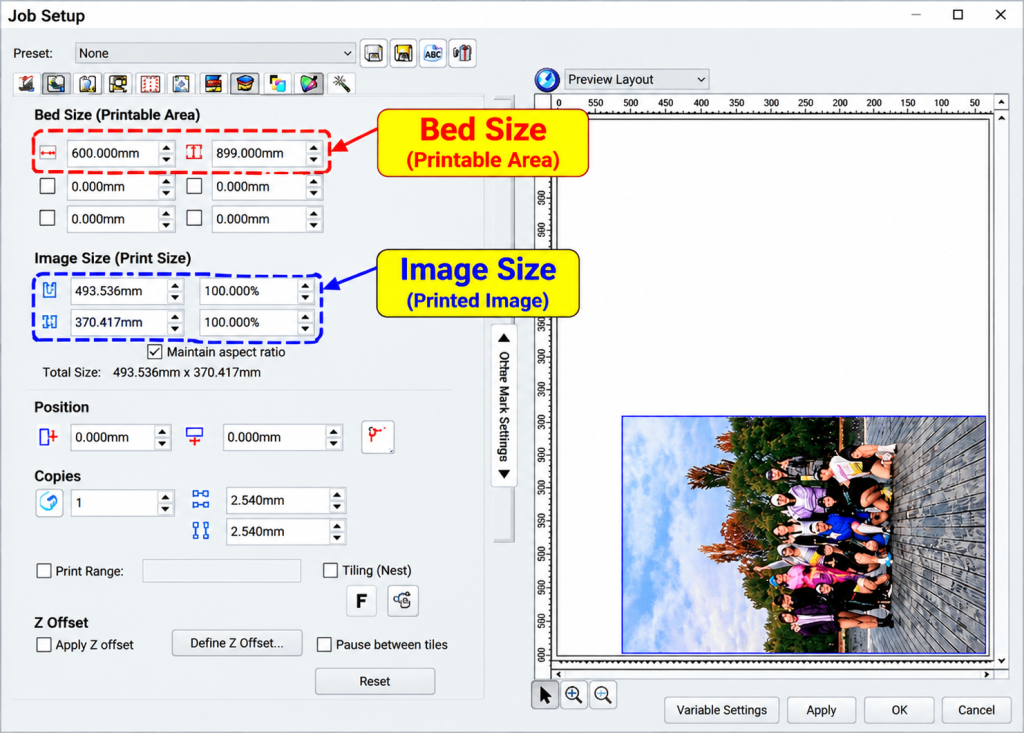
1-2. Select both Image 1 and Image 2 in the RIP software — the [Nest] button on the right will activate as shown below.
2. Arranging images in the [Nest] workspace
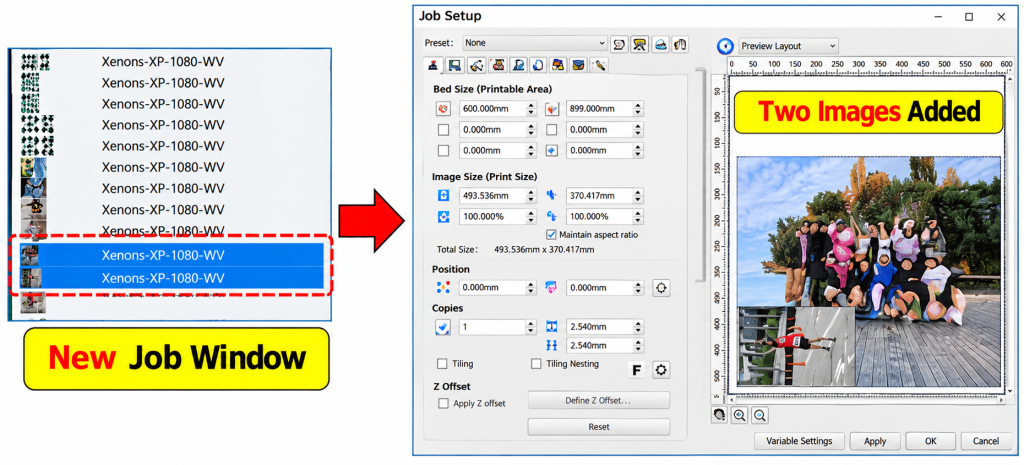
2-1. What appears after clicking [Nest]
- Clicking [Nest] creates a new combined job in the RIP queue, as shown on the left in the image below.
- Clicking that job opens a new workspace with both images displayed together, as shown on the right.
2-2. Set the Flatbed size to match your substrate for easier layout
- For convenience, change the Flatbed print area from the default 600 x 900mm to the actual substrate size — in this case, 585 x 300mm.
- This step isn’t strictly required.
- However, setting the Flatbed to match the substrate size makes it easy to see at a glance whether the combined images fit within the print area — which reduces mistakes.
2-3. Select each image and resize to fit within the substrate
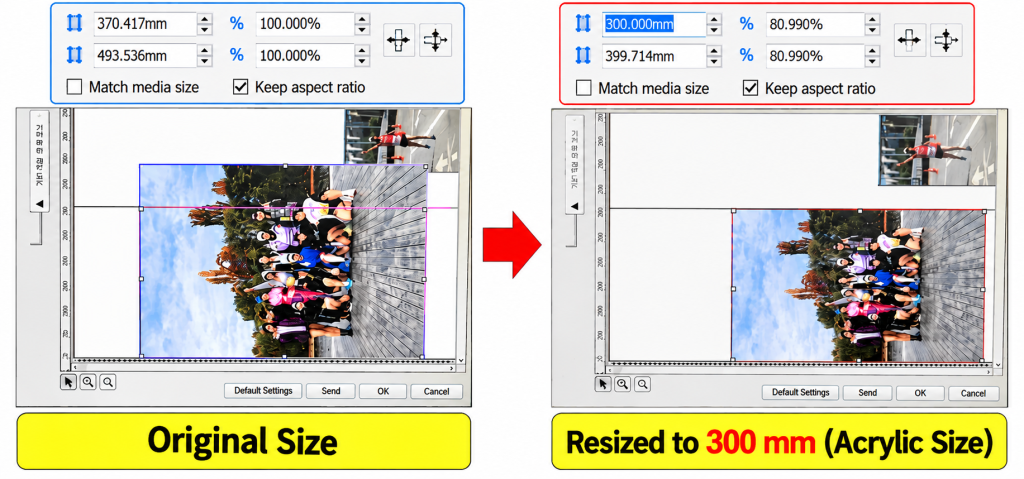
- Select each image and adjust its size so both fit within the 585 x 300mm substrate area.
- Any image that falls outside the print area can be repositioned by dragging it with the mouse.
- For a visual reference on how to drag and reposition images, see the short video below.
- ARTJET UV Printer Application 37 — Printing two images together using RIP nesting
- Once the layout is set, run Ripping — Sai Flexi RIP will combine both image files and print them in a single pass.
- The image below shows the completed print, with each image cut individually afterward.

Note: The [Margin Adjustment] feature for setting X and Y start positions doesn’t appear to work reliably.
This isn’t a feature you’ll need every day — but when you do need to fit two images onto a single substrate, being able to handle it directly in the RIP rather than going back to Illustrator or Photoshop saves a meaningful amount of time.
IV. ARTJET UV Printer
