
- You want to know exactly how much ink is consumed and how much it costs for the image you are currently printing
- You cannot find the [Estimate] option in Sai Flexi Rip or do not know how to activate it
- The ink consumption shown in the Rip differs from the actual amount used by the printer, and you want to understand why
- You need to calculate White and Varnish ink consumption by factoring in the printer SW channel settings
- Your ink is sold in kgs instead of liters, and you are unsure what number to enter for cartridge volume
- You are preparing a quotation and wondering whether to include ink consumed by cleaning and pumping
- The ink estimation option is only activated after Ripping is complete. If you only load the image without Ripping, the [Estimate] button will not appear.
- Small-format UV printers use very little ink, so the ml unit may display 0. In this case, switch to pl in [Preferences] to see the actual figures.
- The White and Varnish consumption shown in the Rip is based on a single channel. You must multiply by the number of channels and the density (%) set in the printer SW to get the real consumption.
- If your ink is purchased in kgs, enter 1 kg ≈ 950 ml for the cartridge volume.
- When quoting, always factor in ink consumed by White cleaning and pumping. Omitting this will cause a gap between the estimate and actual cost.
- Ink consumption = Total ink drops on the image × Drop volume (picoliters)
- In Sai Flexi Rip, the [Estimate] option shows Color (CMYK Lc Lm) ink consumption and cost directly
- For White & Varnish, multiply the Rip value by number of channels × density (%) to get the actual consumption
- Example: White Rip value 0.45 ml × 6 ch × 50% = Actual White consumption 1.35 ml
- For accurate costing, combine printing ink + cleaning/pumping ink
I. Understanding Ink Consumption First — How Much Ink Does This Image Cost?
You need to know the ink consumption before you can calculate the ink cost.
The principle behind calculating total ink usage for the image being printed is simpler than you might think.
Multiply the total number of ink drops on the image by the volume of a single ink drop, and you get the total ink consumption.
1. Total number of ink drops on the current image
- The printer’s print head does not know what the Ai file looks like. It simply fires ink when an electronic signal comes in, and does not fire when no signal is received.
- In other words, the print head only responds to electronic signals, so you cannot determine ink consumption through the head alone.
- Instead, the Rip SW offers a way.
- The Rip SW separates the Ai file into C, M, Y, K or C, M, Y, K, Lc, Lm, White, Varnish channels.
- If your printer is a 4-color machine printing color only, the Rip SW splits the Ai file into 4 separate files — C, M, Y, K.
- If it is a 6-color machine with White and Varnish, the Ai file is split into 7 files — C, M, Y, K, Lc, Lm, White, Varnish.
- If you open each separated file in a separate viewer, you will see countless black dots on a white background.
- Each of those dots represents a point where the print head fires ink. Where there is no dot, no ink is fired.
Each dot equals one ink drop. Add up all the dots, and that is the total number of ink drops for the image being printed.
2. Volume of a single ink drop
- This is simpler than you think.
- You already know it as “How many picoliters is this head?”
- “This head is a 5-picoliter head.”
- Correct. 5 picoliters = 0.000000000005 liters — it is a unit of volume.
- Total ink drops × 0.000000000005 liters = Ink consumption for that image
- This is how you calculate the total ink used for the image being printed.
II. Setting Up the Ink Estimation Option in Sai Flexi Rip — How Much Ink Does This Image Cost?
1. Finding the ink estimation option in Sai Flexi Rip
The Ai file is only separated into C, M, Y, K or C, M, Y, K, Lc, Lm, White, Varnish after Ripping is complete, so you can only see the total ink drop count for a Ripped image.
If you only load the image into the Rip software without Ripping it, the ink estimation option will not be activated.
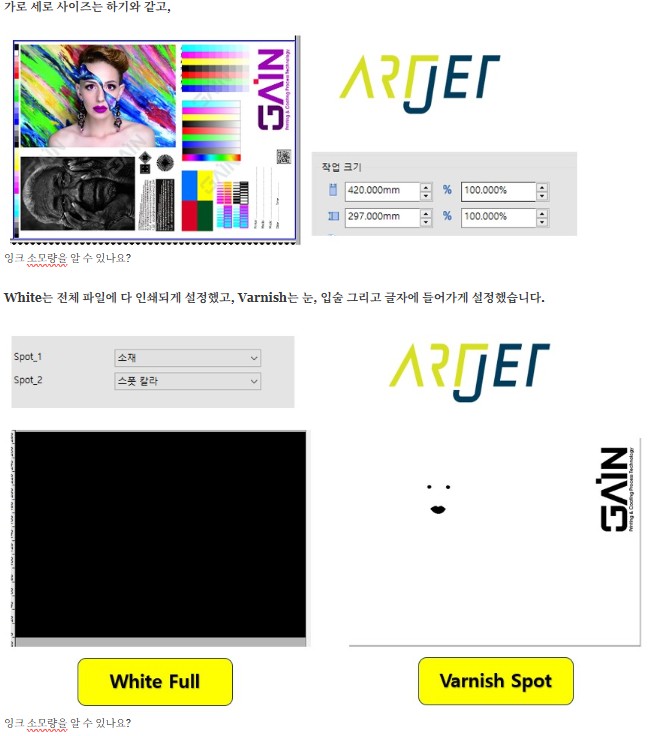
The ARTJET test image below has been Ripped. A brief description of the image:
- Image size: 420 mm × 297 mm

- White is set to print across the entire file using Spot_1 with the [Substrate] option,
- Varnish (Spot_2 channel) is applied only to the lips and text area.
- In the photo below, the left side (shown in black) is where White prints across the entire area,
- The right side shows Varnish printing only on the lips, pupils, and text (shown in black).

Ink Estimation Option
- After Ripping is complete,
- select the image again, and the [Estimate] option becomes active as shown below.
- Click [Estimate] to open the ink consumption window.

2. Configuring the ink estimation options in Sai Flexi Rip
1. Ink estimation option window and detailed settings
To calculate ink consumption correctly, you need to configure the [Ink Estimation] option window properly as shown below.
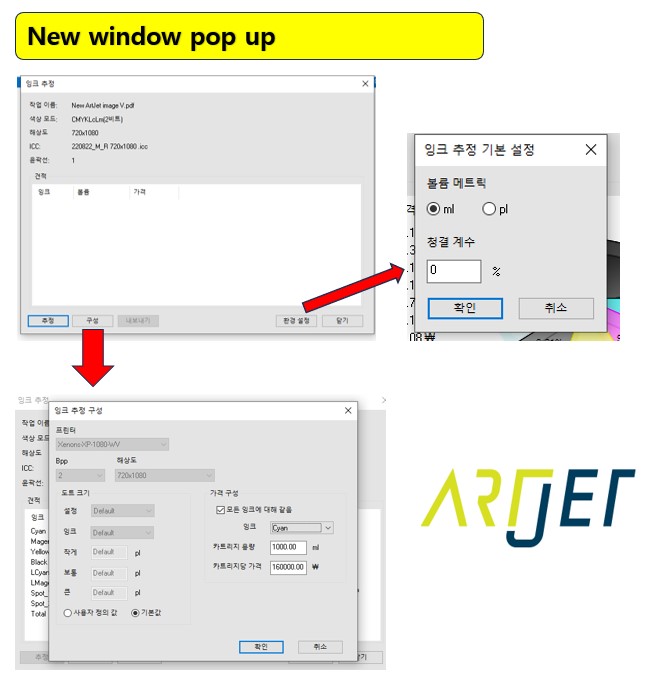
1_1. First, let’s explain the [Preferences] setting.
- At the bottom right of the first screenshot, you will see a [Preferences] button.
- Click it, and a small [Ink Estimation Default Settings] window appears.
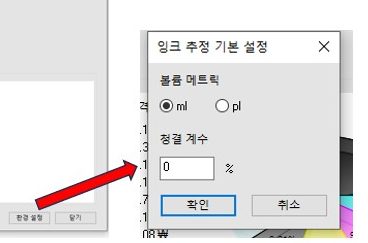
- This window sets the unit for displaying total ink used.
- You can choose between ml or pl.
- For small images with low ink consumption, the ml display may show only 0.
- In that case, switch to pl to see the specific consumption figures.
- Since we use a small-format UV printer with low ink consumption, we set it to pl to ensure the values are displayed.
1_2. Next, let’s explain the [Ink Estimation Configuration] option window.
- Click the [Configure] button at the bottom of the first screenshot, and the [Ink Estimation Configuration] window appears.
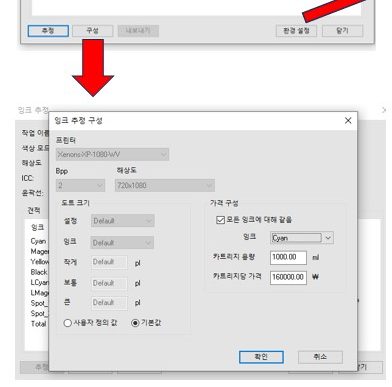
- A window appears where you can enter the total volume and price of your ink bottle.
- We will use our company’s ink as an example.
- Cartridge volume: 1000 ml
- Price per cartridge: 160,000 KRW
- Simply enter these values.
2. Detailed explanation of ink volume and price
This section is important, so we will explain it again based on our printer.

2_1. About [Cartridge Volume]
- This is where you enter the volume of the ink bottle you are currently purchasing.
- However, some suppliers sell ink by the liter, while others sell by the kilogram.
- If your ink is sold in 1 kg units, you may be unsure what number to enter.
- Ink is slightly heavier than water, so 1 kg of ink is approximately 950 ml.
- White ink is heavier than color ink, but you can simply treat 1 kg as 950 ml for both.
- If you purchase ink in kgs rather than liters, enter 950 ml in this field.
2_2. [Price per Cartridge]
- Enter the price of the ink you are currently purchasing.
- Our ink costs 160,000 KRW, so we entered 160000.
2_3. [Same for All Inks]
- If you check the [Same for All Inks] box (highlighted in red in the screenshot above),
- the same cartridge volume and price will be applied to all ink channels.
- This means C, M, Y, K, Lc, Lm, White, and Varnish all use the same values.
- I entered 1000 for cartridge volume (950 would be more realistic),
- and 160,000 KRW for the price.
- For convenience, the same value is applied to all inks — C, M, Y, K, Lc, Lm, White, Varnish.
- If ink prices differ, you can uncheck this option and enter separate values for each ink.
III. Ink Consumption and Cost — How Much Ink Does This Image Cost?
1. Information available from Sai Flexi Rip
All settings in the Rip are now complete. As a reminder, we are working with the image below.
- Now click the [Estimate] button to see ink consumption and cost for CMYK, Lc, Lm, White, and Varnish.
- Since the image is of a reasonable size, I selected ml instead of pl in [Preferences].
- The consumption and cost for C, M, Y, K, Lc, Lm are calculated individually. Spot 1 is White, and Spot 2 is Varnish.
When White and Varnish are included in the ink consumption, clicking the Estimate option shows the window below.
- For Color, the information below is sufficient to determine ink usage and cost.
- However, for White and Varnish, this information alone is not enough to calculate the accurate ink consumption.
- Depending on the White and Varnish settings in the printer, more or less ink may be used, so you need to calculate this separately.

2. Calculating accurate ink consumption and cost with the printer SW
Our printer uses 3 XP600 heads, and each XP600 head operates 6 channels.
- The first head’s 6 channels run CMYK Lc Lm,
- The second head’s 6 channels all run White (W, W, W, W, W, W),
- The third head’s 6 channels all run Varnish (V, V, V, V, V, V).
Because of this, the following must be considered:
- CMYK Lc Lm color prints at a 1:1 ratio between the Rip data and the printer,
- but White and Varnish are ejected through 6 channels in the printer SW,
- and you can also set the density (%) for each channel.
- This needs to be recalculated.
The printer SW has an option window to set the White and Varnish density as shown below.
- In the screenshot below, you can see that both White and Varnish have 6 channels,
- and at the bottom there is a density adjustment slider (0–100%) for each.
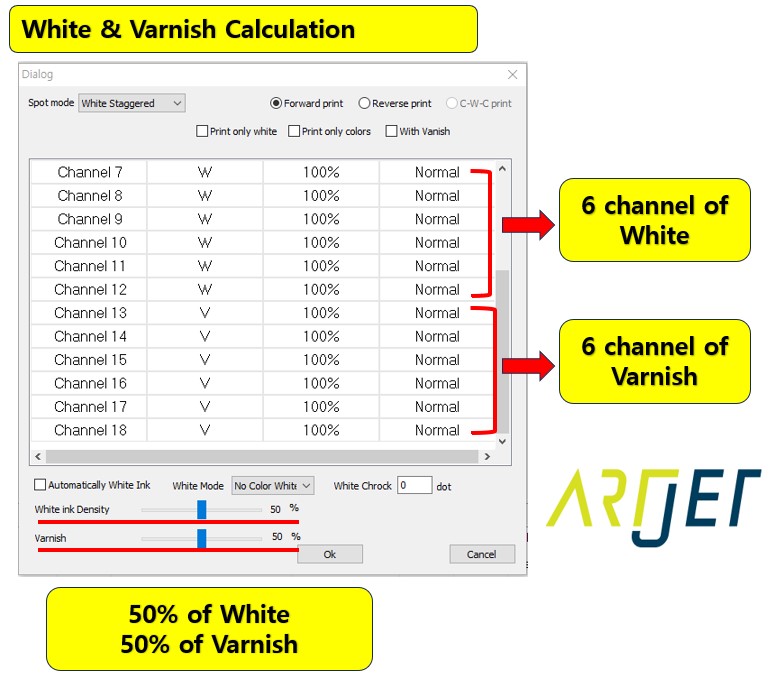
- We will explain based on the settings shown above: all 6 channels active, density 50%.
- This is also the default setting on our printer.
- Let’s walk through the White calculation: the Rip data shows White at 0.45 ml (Spot_1 in the screenshot below).
- This is the ink consumption when applied through a single channel.
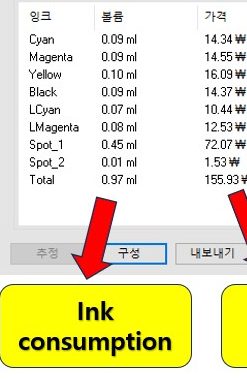
- Again, our settings: all 6 channels active, density 50%
- The printer SW uses 6 channels for White, so multiply by 6,
- and since all 6 channels run at 50% instead of 100%:
- (0.45 ml × 6 ch × 50% = 300%) → 0.45 ml × 3 = 1.35 ml
- This calculated value is the actual White ink consumption through the printer.
Varnish is calculated the same way as White, resulting in 0.03 ml.
As you can see, the Rip software shows total ink consumption of 0.97 ml at a cost of ₩155.93, but

When you factor in the White and Varnish settings from the printer SW, the actual ink usage is as shown in the spreadsheet below:
- Total ink consumed: 1.9 ml
- Total ink cost: ₩303.12

One important point to emphasize: Color and Varnish can usually maintain good nozzle condition with cleaning alone,
but White requires both pumping and cleaning.
The ink consumed by this process is not negligible, so always factor in the cleaning ink consumption when preparing quotations.
IV. ARTJET UV Printer
