INKJET UV Printer & Coat & CUT

INKJET UV Printer & Laser Cutting Machine

경기도 안양시 동안구 시민대로109번길 29, 13층 1302호

From downloading to installing the latest version of RDWORKS

From downloading to installing the latest version of RDWORKS ARTJET 2025

From downloading to installing the latest version of RDWORKS


“The Crop marks cutting program can move the laser head to the desired location with SW, but the engraving program does not have a place to move the laser head exactly with SW.”

This function was added when the RDWORKS software version was upgraded from V8.01.29 to V8.01.60.

Now, it is up to V8.01.65 version, and you can download the latest version.


From downloading to installing the latest version of RDWORKS

I will explain how to download the latest version, install it, and then place the laser head in the desired location and start cutting.

For reference, I sell equipment, but I am mainly in charge of sales, so I have not done much software installation,
so I have described it in detail based on my standards, so that even beginners can follow along.


I. From downloading to installing the latest version of RDWORKS


1. RDworks V8 Download _From downloading to installing the latest version of RDWORKS

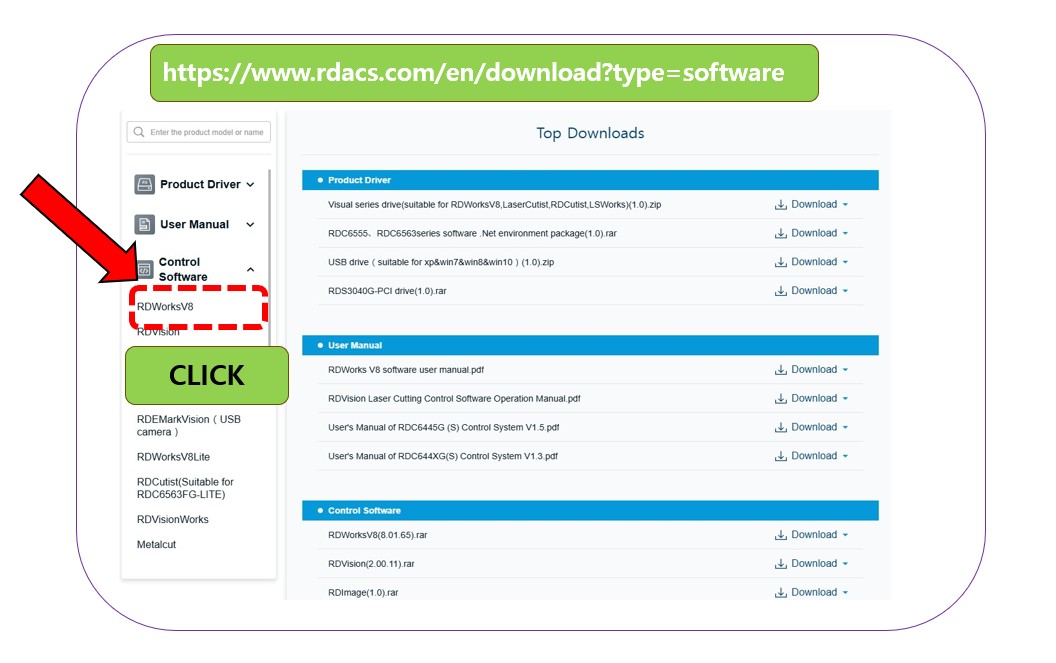
You don’t need to register, just click the link below to go to the download site.

Motion Control Software and V8 Software Downloads – Ruida Technology

When you click on the link, the homepage appears.


If you look on the left, it looks like this,
Select “Control Software”,
Drag down and you will see RDWorksV8.

From downloading to installing the latest version of RDWORKS

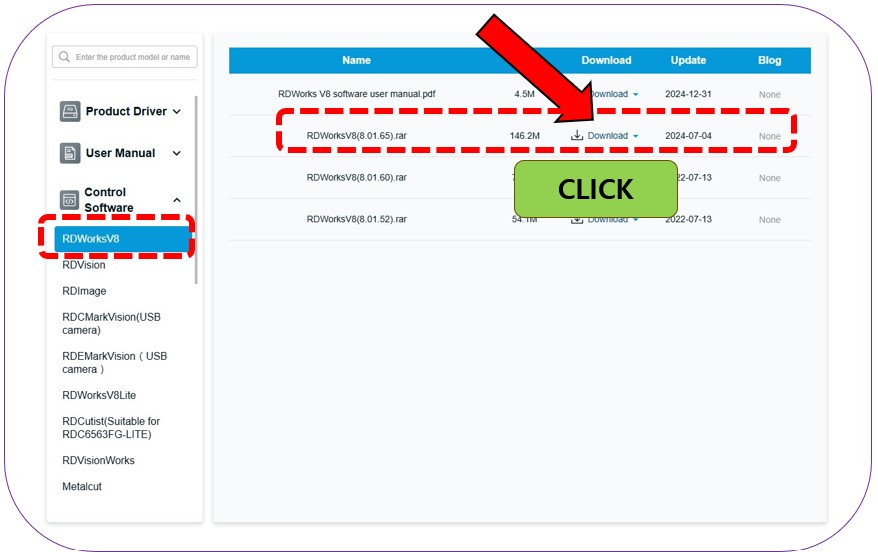
When you click RDWorksV8,
the following screen will appear on the right,
and click RDWorksV8(8.01.65).

From downloading to installing the latest version of RDWORKS

The puzzle will appear as shown below,
and when you drag the arrow to the right with the mouse to solve the puzzle,
the download will begin.

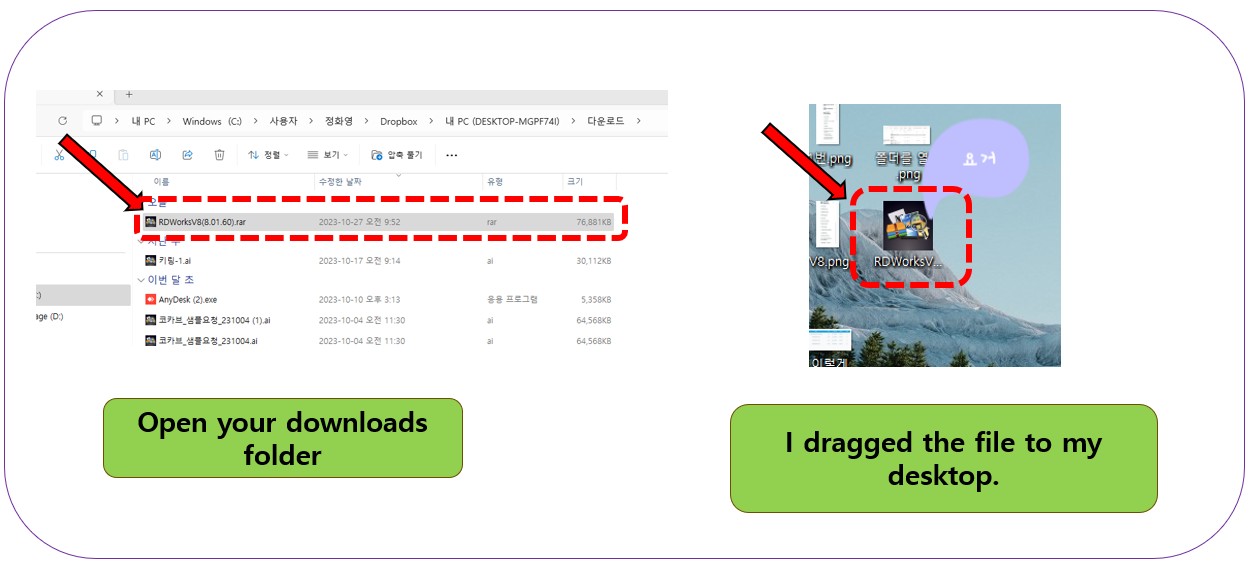
When the download is complete,
click the small circle in the upper right corner,
and go to the downloaded program screen.

From downloading to installing the latest version of RDWORKS

I dragged the program in that folder to the desktop.

From downloading to installing the latest version of RDWORKS

2. RDworks installation _ From downloading to installing the latest version of RDWORKS

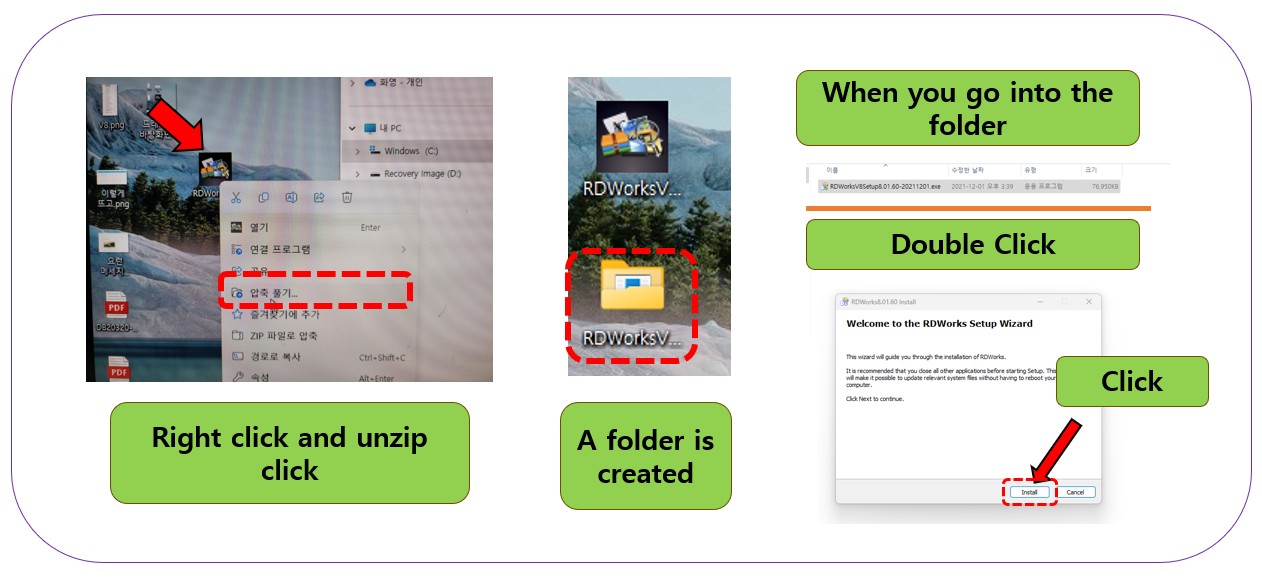
Select the downloaded program, right-click and click Unzip.

A new folder will be created, go into that folder, and double-click the program.

Then, the installation window will appear, and click Install.

From downloading to installing the latest version of RDWORKS


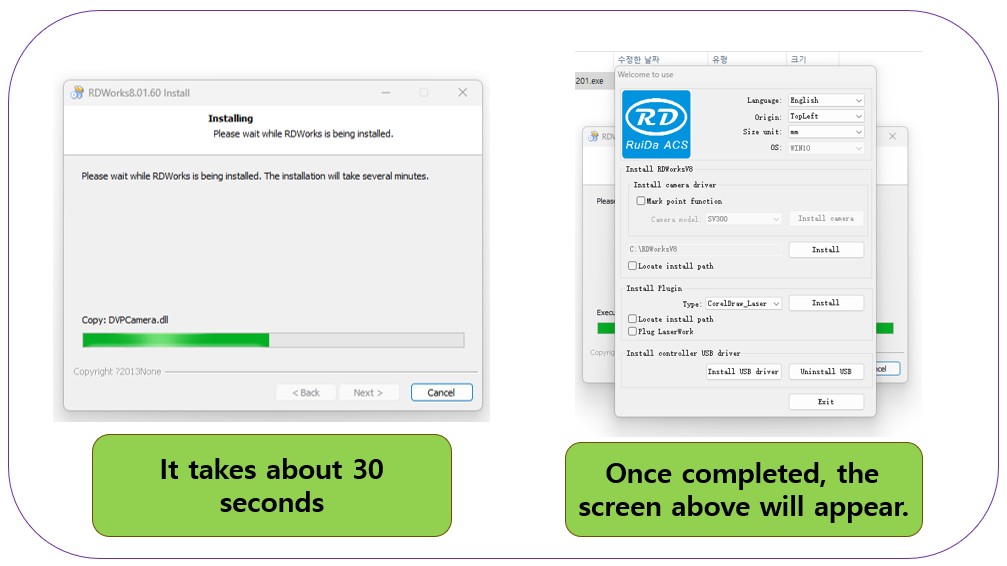
The installation will take about 30 seconds, and once the installation is complete, a new screen will appear.

From downloading to installing the latest version of RDWORKS


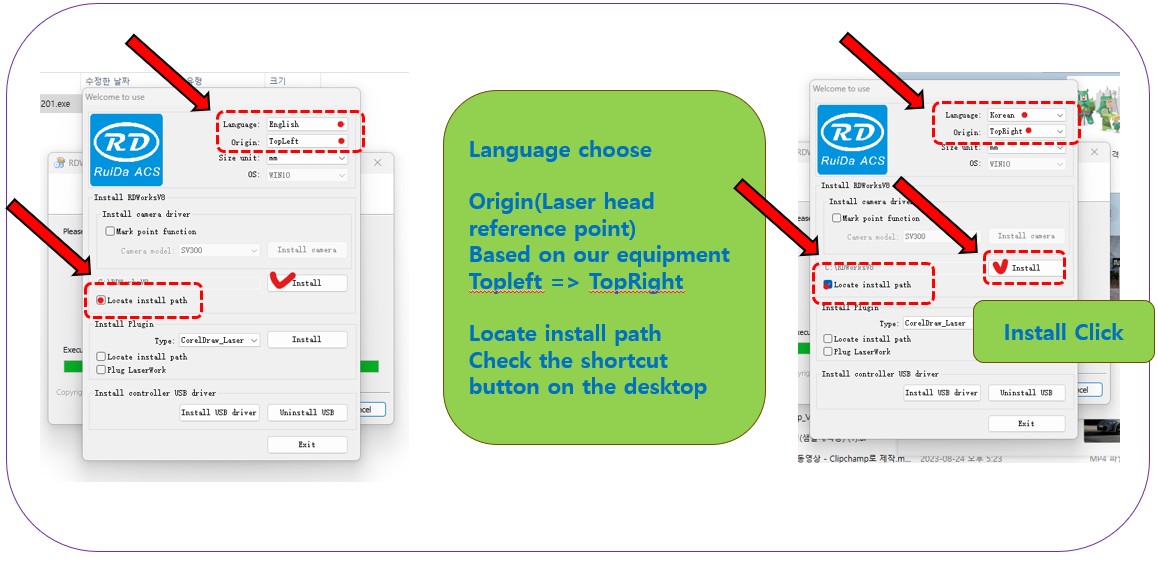
This part, especially the laser head reference point setting, please do it well.

Select the Language,

The laser reference point has been changed from Topleft to TopRight based on our equipment, and you must set it based on the equipment you are currently using.
After the installation is complete, the laser head may recognize a completely different direction as the zero point.
There is a place to change the head zero point, but I emphasize that it is better to do it properly when installing.

Check Locate install path (shortcut button on the desktop).

And click the install button.

From downloading to installing the latest version of RDWORKS

When you click the Install button, you need to set the program storage location. I chose C and clicked the OK button.

After that, a message saying “Install Finish” will appear as shown on the right screen. Click “OK”.

Then, when you click the Exit button on the third screen, the program will appear on the desktop.
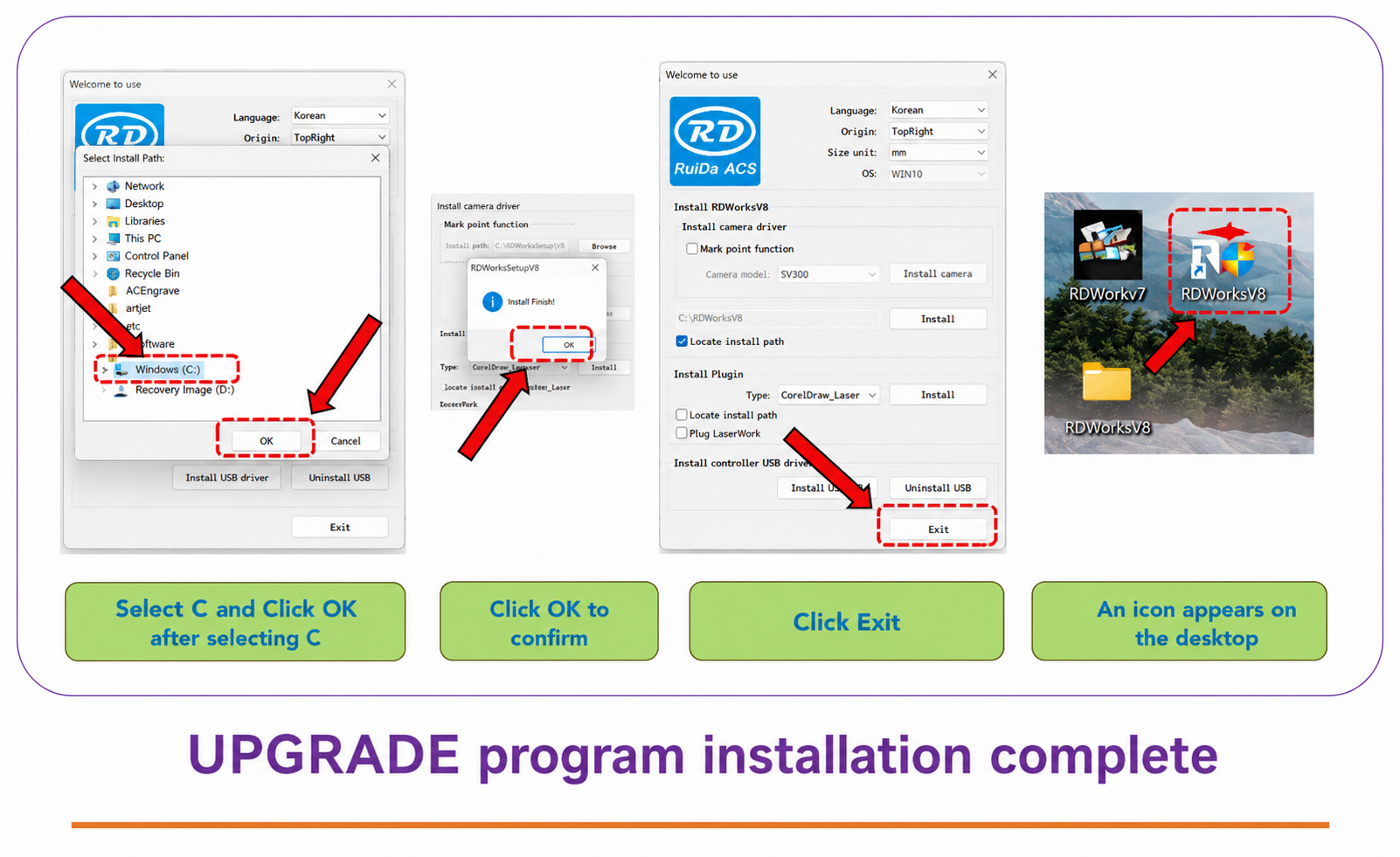
From downloading to installing the latest version of RDWORKS


II. Laser head starts cutting at desired location _From downloading to installing the latest version of RDWORKS


1. Laser head position setting window _From downloading to installing the latest version of RDWORKS

For those of you who are using an older version, you may have roughly guessed the starting position by eye,
but now you can move the laser head to the desired location by entering the number.
Enter through the “Test” button at the top right of the program.
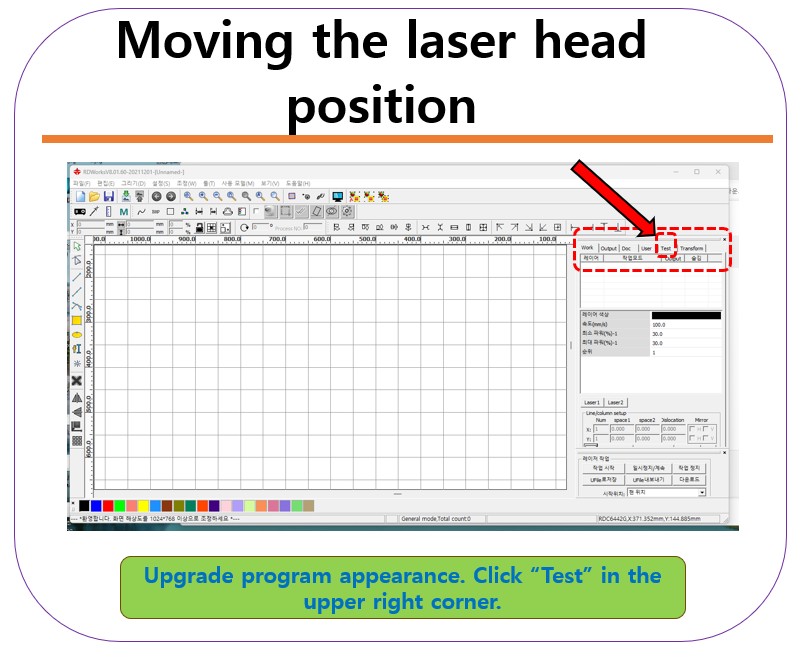
From downloading to installing the latest version of RDWORKS

2. How to use _ From downloading to installing the latest version of RDWORKS


From downloading to installing the latest version of RDWORKS

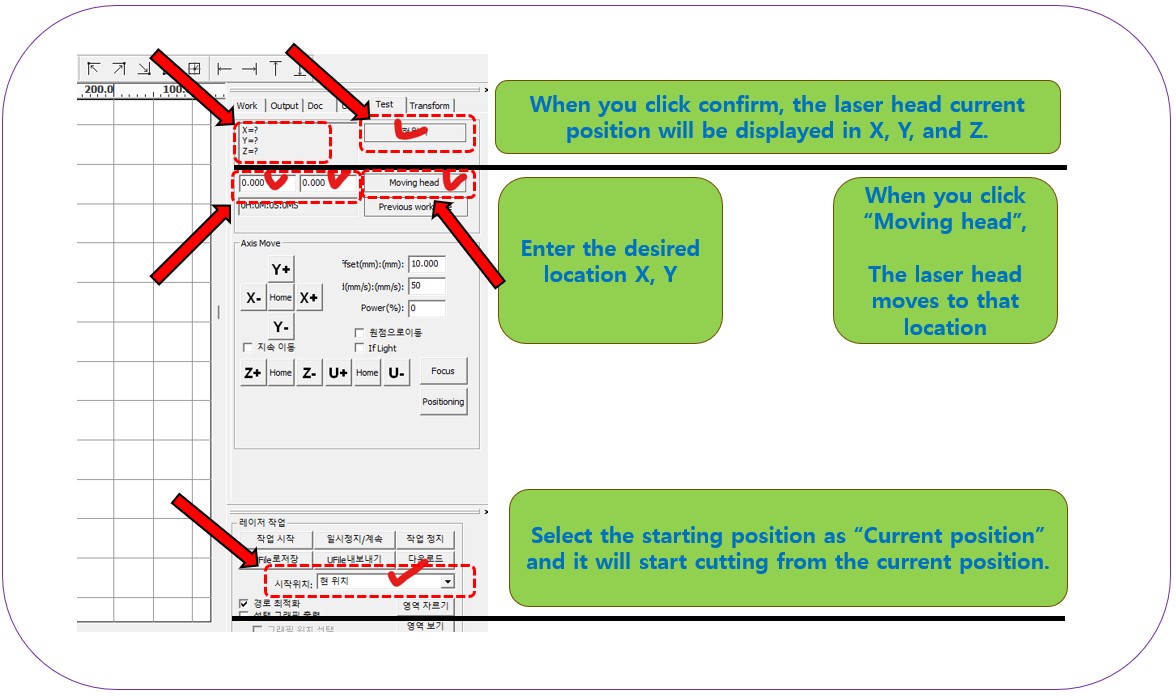
On the Test screen, if you press “Confirm”, the current position will be displayed in X=?, Y=?, Z=? (excluding Z), ?.
The X, Y, Z position display is a feature that was also present in the previous version.

Enter a number in the blank space at the bottom (not present in the previous version) that says 0.000 / 0.000 (the first is X, the second is Y), and then press “Moving head”, and the laser head will move by that number.
In this way, position the laser head to the desired position.

Then, select “Current position” at the very bottom, and press “Start work”,
and cutting will proceed at that position.


You can see the content I just explained in video form by clicking here.


ARTJET supports laser cutting machines, but is a company specialized in UV Printers.

UV Printers support customers as follows:


III. This is how ARTJET supports our customers.


One thing I feel while selling and maintaining ARTJET UV Printers for 5 years is that the next most important thing after product stability is Troubleshooting DATA.

All products have problems, whether they are actual equipment problems or consumer errors, and product stability is how easily and quickly you solve those problems.

We are organizing all the troubleshooting DATA as follows.


Roland UV Printer summary
ARTJET UV Printer

1. Printhead Problems and Solutions Total 10

ARTJET UV Printer Problems and Solution_Printhead Problems Summary

Additional issue and solution
The red color does not appear at first, then appears during printing, and then does not appear again


2. Ink Supply Problems and Solutions Total 17

ARTJET UV Printer Problems and Solutions_Ink Supply Problems Summary

Comprehensive application
Damper replacement time
The nozzle test is fine, but it seems that a certain color is not coming out during printing
Capping station block positioning to match the print head and captop
Can I ignore the ink alarm and use it?
UV Printer Monday Morning Routine
I tried white cleaning every day for a month

3. Mechanical problem and Solutions 

1. How to align the print head in a straight line
2. There is a clicking noise from the X-axis
3. Banding problem in specific section
4. The Importance of Head Height in Bidirectional Printing
5. Problems that occur when the wiper height is high
6. When the cleaning belt screw is loose
7. When the capping fixing plate does not fit
8. How do I prepare the ARTJET electricity?
9.When Anti-crash becomes a jam in captop
10. Print head Anti crash system 


4. Electron board and Software problem is hereunder. 

1. The printer works but printing does not work
2. Resetting to default settings
3. Touch panel does not turn on
4. The printer is printing, but nothing is printed
5. Software closes when I just press the print button
6. Printing in the wrong place
7. Positioning misalignment in X-axis direction
8. How to make the Offset fine tune
9. Vertical offset is not correct only for the right section of white
10. Software turn off when click print button


5. Sai Flexi Rip software  

1. Sai Flexi Rip _ How to make the Spot Color & several mistakes
2. Sai Flexi Rip _ Color is strange after applying Spot color
3. Sai Flexi Rip _ White is sticking out
4. Sai Flexi Rip _ Installation and Dongle Key Recognition Failure Measures
5. Sai Flexi Rip _ Dongle Key Recognition Failure
6. Sai Flexi Rip _ White lines appear when printing only color
7. Sai Flexi Rip _ Color Adjustment through Graph
8. Sai Flexi Rip _ Print size compensation
9. Sai Flexi Rip _ Ink Consumption Calculation
10. What is ICC profile & menu board UV Printing
11. Sai Flexi Rip _ Dongle Key recognition Failure from USB port


6. Problems and solutions from actual consumer sites

1. Paper that absorbs ink
2. White Motor Pump Does Not Turn
3. A line-like thing appears at the end of the white print surface
4.Can varnish banding be reduced?
5. Are there many problems with China’s UV Printer?

7. UV Printer Application 

we are explaining not only UV printer problems and solutions, but also what products are produced with UV printers.

1. Braille printing
2. Flip the material and align it
3. 2.5D UV print
4. ARTJET UV Printer Application 6 _아크릴 본딩 장비
5. I phone 14 print limitation 
6. Mask printing not recommend
7. Leather Cigarette Case UV Printing
8. Round soccer strategy board UV printing
9. Primer  performance & limitation 
10. UV Print & Laser crop mark cutting
11. Mobil case UV print profit
12. Screen vs Digital Comparison and UV Printing on Hand Sanitizer Cases
13. Bottle zig & print
14. Canvas UV Printing
15. Applying epoxy effect with varnish
16. Making a light frame with UV Printer & Laser cutter
17. UV Printer & Laser Cutting Equipment Button Name Tag Making
18. UV Printer & Laser Cutting Making a Cell Phone GripTok
19. Making an Acrylic Keychain with UV Printer & Laser Cutter
20. UV Print with Zig
21. How to make RD WORKS CCD camera cutting Video manual
22. Acrylic bonding equipment
23. All the steps to create UVDTF
24. UVDTF TEST Result on various material
25. ARTJET CW+C Print time & Ink Cost
26. Create a white shield with different images on the front and back of the keyring
27. Keyring Business Required Equipment and Investment Costs
29. Acrylic Lighting Goods
30. Ballpoint pen jig printing
31. Staining occurs when printing on coated leather


8. Bonus

1. ARTJET UV Printer Old Model Refurbished
2. UV Printer Laser Cutter Bonding Machine Which equipment should I buy first?
3. Considerations when choosing a UV printer
4. DTF Printer Price and Specification Survey
5. Acrylic Bonding Equipment Don’t Put It Off Anymore
6. China inkjet level now
7. Thoughts on KOSIGN 2024
8. ARTJET Delivery Preparation
9
. ARTJET Setting Sequence 
10. UV Printer History and Future Prediction 1
11. UV Printer History and Future Prediction 2
12. UV Printer History and Future Prediction 3
13. UV Printer History and Future Prediction 4
14. UV Printer History and Future Prediction 5
15. Are there many problems with China’s UV Printer?
16. UV Printer Small Text Meaning
17. Is the XP600 head okay
18. Roland UV Printer Summary
19. Mimaki UV Printer Summary

20. UV Printer Alibaba Direct Purchase Considerations
21. Things to consider when buying a used UV Printer
22. Bi Uni Print Quality Differences


That’s it for today.


댓글 달기

이메일 주소는 공개되지 않습니다. 필수 필드는 *로 표시됩니다