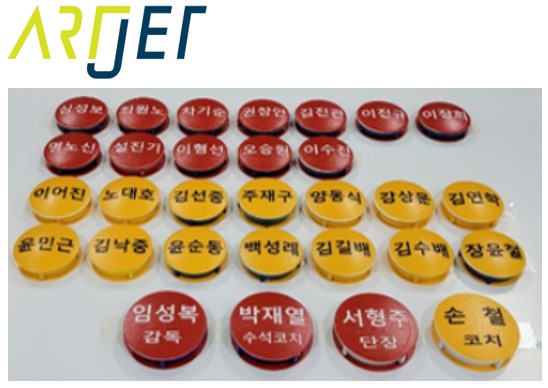
ARTJET UV Printer Application 11 _ Round soccer strategy board UV printing
ARTJET UV Printer has been sold in Korea for 4 years, and we are organizing the printer problems we have encountered so far, their causes, and their solutions.
We have compiled 10 different print head problems and 17 ink supply problems, and you can find detailed information at the site below.
ARTJET UV Printer troubleshooting sum up
From last time, we are explaining not only UV printer problems and solutions, but also what products are produced with UV printers.
In the first session, ARTJET UV Printer Application 1 braille printing
In the second session, ARTJET UV Printer Application 2 Flip the material and align it
In the third session, ARTJET UV Printer Application 3 2.5D UV print
In the fourth session, Sai rip [Color Adjustment] tab. ARTJET UV Printer Application 4 Sai rip color graph
In the fifth session, ARTJET UV Printer Application 5 Sai rip print size compensation
In the sixth session, we talked about the acrylic bonding equipment that those who have UV printers and laser cutting equipment are looking for.
Hereuner is only Korean since only Korea is hot on this machine. ARTJET UV Printer Application 6 _아크릴 본딩 장비
In the seventh session ARTJET UV Printer Application 7 _ Ink Consumption Calculation
In the Eighth session, ARTJET UV Printer Application 8 _ I phone 14 print limitation
About K print, Korea Signage Label & special printing exhibition, ARTJET UV Printer Market research 1 _ K Print 2024 Korea printing exhibition
In the ninth session, ARTJET UV Printer Application 9 _ Mask printing not recommend
In the tenth session, ARTJET UV Printer Application 10 _ Leather Cigarette Case UV Printing
Today, I will explain how to print on round material.
I. Condition of material to print
1. Messy name tag with adhesive sheet
About a year ago, it was messy with the adhesive sheet, and although I had a hard time removing it, I just gave up on the areas where it just couldn’t come off.
When printing was carried out in that state, no matter how thick the white ink was printed, messy curved marks were visible where the adhesive sheet remained.
If there is any adhesive sheet left, no matter how difficult it is, you must remove it all and clean it so that it looks neat after printing.

2. Strong colors are not easy to mask with white.
You have to print again on the image printed like that.
Names expressed in red and black are displayed no matter how thick the white is.
At least strongly colored ink must be removed so that it can be masked with white later.
I peeled off the black and red, but they were still a little messy, so I printed the white twice.

II. Round printed surface
1. Print mode selected in ARTJET SW
Since the print surface of the material is slightly curved, I set the print mode in ARTJET SW accordingly.
* Single leave( Uni direction print)
* Scan Speed “SLOW” and feed speed “SLOW”
Please refer to the head carriage speed (Scan speed) and Y-axis flatbed feed speed adjustment windows below.

2. Reasons for choosing Slow
ARTJET UV Printer’s Head Carriage speed has three modes: FAST, NORMAL, and SLOW.
In FAST mode, the head carriage moves at a speed of approximately 1,000 mm per second.
Approximately 800mm per second in NORMAL mode, approximately 400mm per second in SLOW.
The faster the head carriage speed, the faster
The speed of the ink falling down is inevitably affected by the force of the head carriage moving left and right.
In particular, as the impact point of the falling ink moves further away, the falling ink speed decreases and is more greatly affected by the left and right movement of the head carriage.
For this reason, when using round material, i.e. when the stand off needs to be high, the head carriage speed should be set slow.
It should be as little affected as possible by the force of moving the head carriage left and right.
3. Additional explanation of the settings window
One most important point is that the head carriage speed (Scan speed) and the Y-axis flatbed feed speed must have the same value.
For printing, the head carriage moves quickly, but if the flat bed feed speed is slow, the head carriage has no choice but to stop until the Y-axis transport is completed.
When these errors accumulate, the printer logic becomes distorted and printing stops.
In other words, you must match it as shown below.
If the scan speed is FAST, the feed speed is also FAST.
If the scan speed is NORMAL, the feed speed is also NORMAL.
If the scan speed is SLOW, the feed speed is also SLOW.
For those of you who don’t know what head carriage means, see below.
You can’t see it because of the cover, but the big thing that moves left and right when printing is called the head carriage.
And the feed speed is when the flatbed moves forward or backward a little bit for each print.

4. Results
It was a long process, printing in one direction on slow and printing in white twice.

That’s it for today.